


 U.S. Department of Health and Human Services
 National Institutes of Health

 eRA Intranet
We are excited to announce that a release scheduled for late March 2026 will enhance eRA Commons so that users will only need a single set of eRA Credentials. This enhancement will allow users with multiple accounts to consolidate into a single account that can then be mapped to Login.gov. If you are an eRA Commons user with multiple accounts, we encourage you to consolidate your accounts as soon as possible. This enhancement will also present users with the ability to select which Organization and what Role Category (ex: Signing Official vs PD/PI) they will be using and set a default.
Changes to the Login Experience – Account Consolidation Option
All users will be presented with the option to consolidate accounts following login to eRA Commons. If a user does not need to consolidate accounts, they may select “Don’t Show Me This Again” to remove the window from their login experience. The option to consolidate will always be available under the person icon on the menu bar at the top right of any page in eRA Commons. It is important to remember that only a single eRA Commons username can be associated with a Login.gov account.
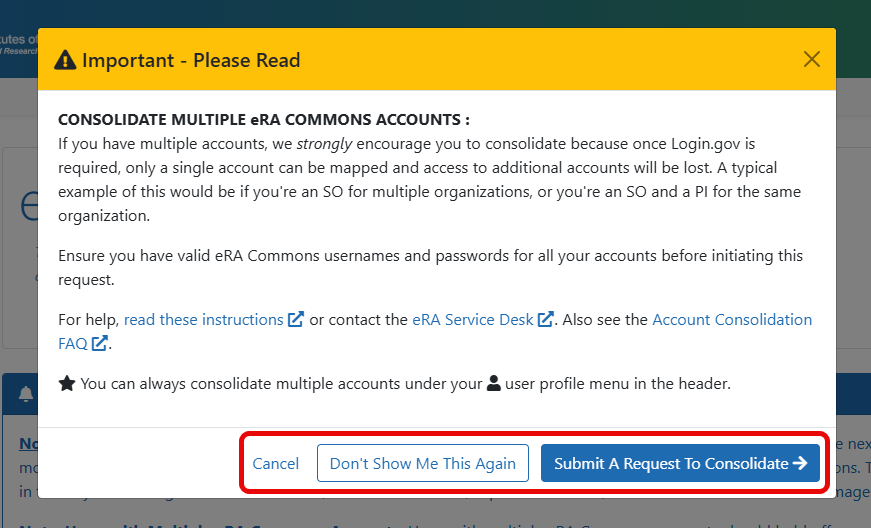
Figure 1: Consolidate Multiple eRA Commons Accounts Window
Account Consolidation Process
To consolidate two or more accounts the user must supply the username and password for each account. Following verification, the user will be guided to select their primary account. After completing review, the request will be sent for processing. The user will receive a notification from eRA Commons and the Service Desk for tracking. Once eRA reviews and processes the request, this will be the users only account.
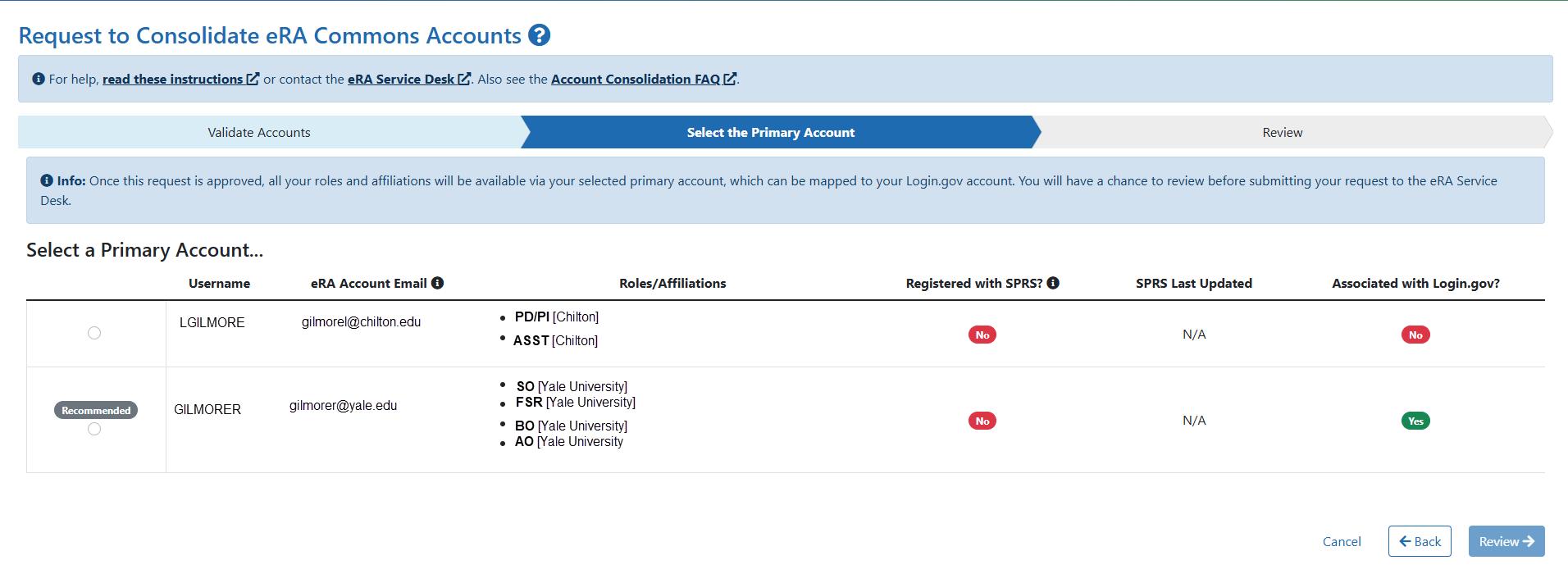
Figure 2: Request to Consolidate eRA Commons Accounts Selection Screen
Changes in Login Experience - Accounts with Multiple Role Categories and/or Affiliations
To simplify the flow for users with multiple affiliations and/or roles, the login experience will be updated. Upon login users with multiple affiliations and/or role categories will be asked to select which Organization and Role Category they will be using during their session. Users will have the option to save a selection as their default to skip this step in the future. Users can change their selection at any time by navigating to the Change Organization/Role function under their person icon at the top right of the page menu bar.
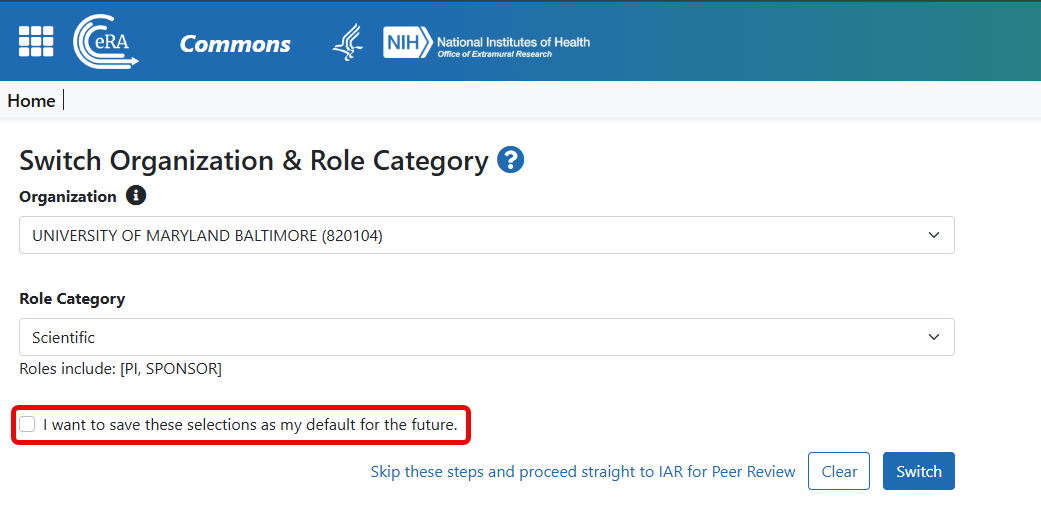
Figure 3: Switch Organization & Role Category Screen
For Reviewers
To ensure Reviewers can easily access their Peer Review meetings and materials an option to ‘Skip these steps and proceed straight to IAR for Peer Review’ is included on the Switch Organization & Role Category screen. This option can be selected at any time and will bypass the need to select both Organization and Role Category.
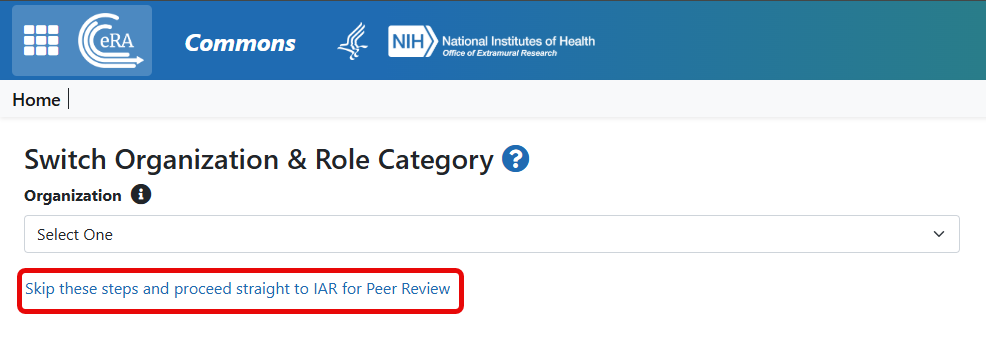
Figure 4: Skip Switch Organization & Role Category Selections for Reviewers
Resources: