
Status for Program Directors/Principal Investigators (PI Role)
The Status module lets those with a PI role review basic aspects of the status of applications sent to the NIH, including pending review, review outcome, pending Advisory Council action, and award status.
Refer to How Does an AOR or SO Check Submission Status? if you hold an SO role.
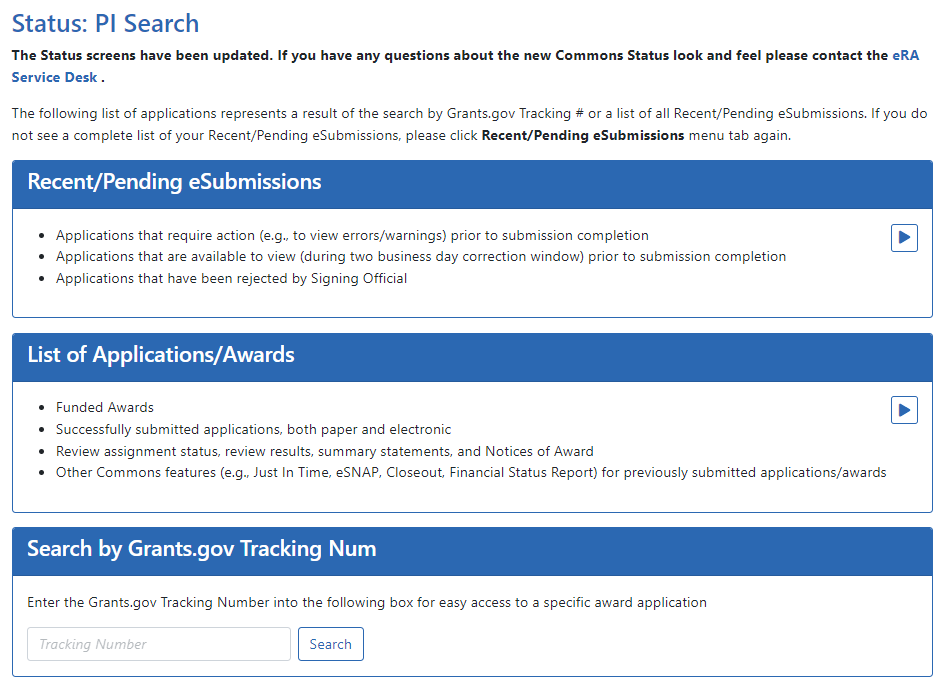
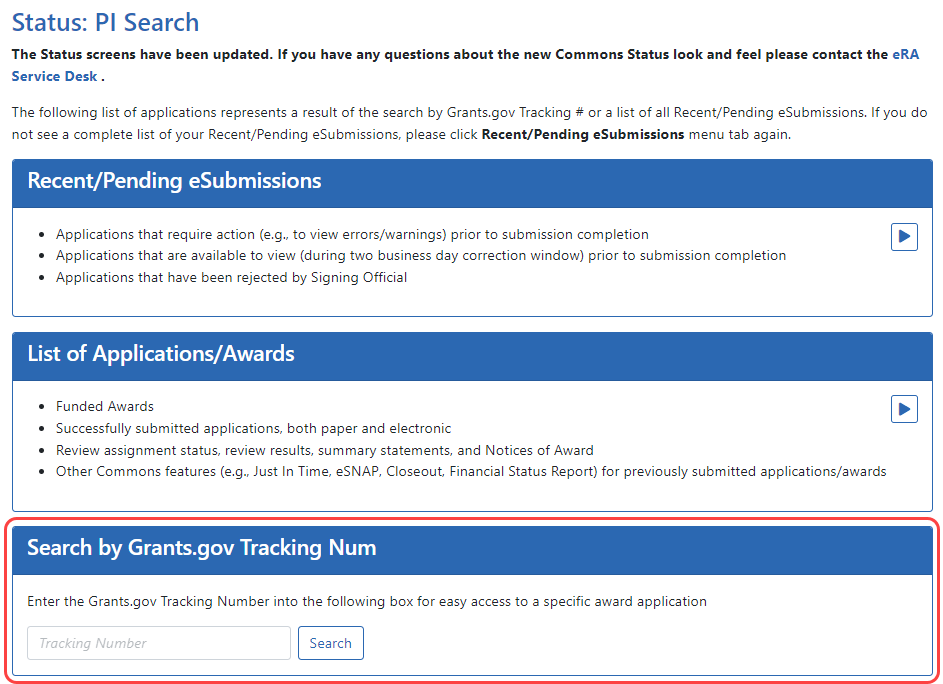
 Upon entering the Status module, a PI is taken to a landing page with three options:
- Recent/Pending eSubmissions: Select this heading to view a list of recent or pending electronic submissions of grant applications.
- List of Applications/Awards: Select this heading to view a list of applications/grants on which the PI user is the contact PI or one of multiple PIs (MPI)
- Search by Grants.gov Tracking Num: Use this field and the Search button to display information for a specific grant application by tracking number.
NOTE: A PI can grant a Commons user with the ASST role access to the Status module. ASST users granted this authority can view the status results as the PI would, however, the ASST user will not have access to the links found in the Action column. Refer to Direct Delegations for information on delegating Status.
Viewing Recent/Pending eSubmissions
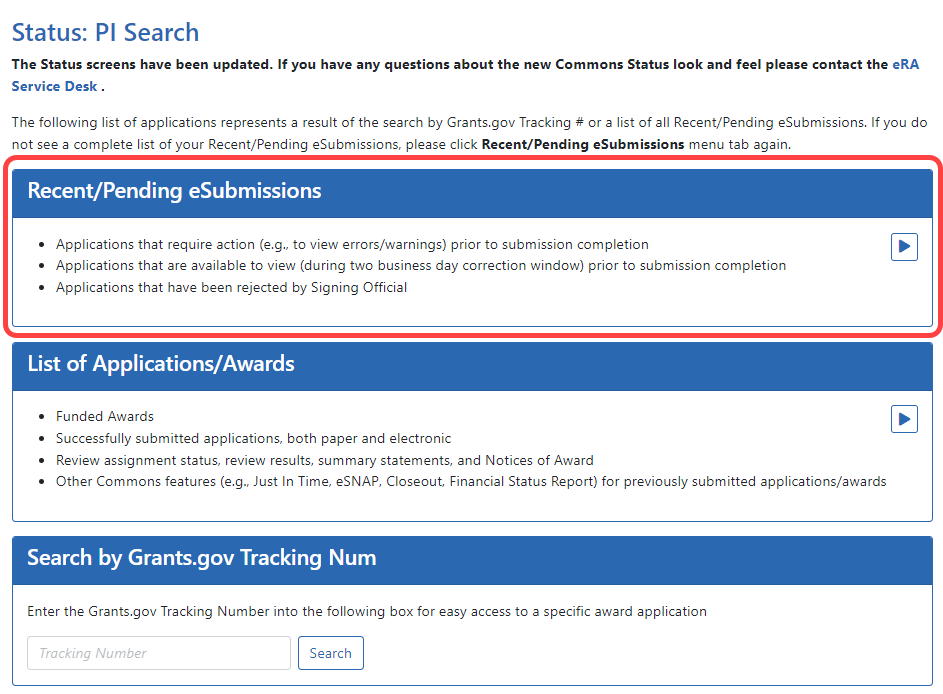
Click the Recent/Pending eSubmissions option to display search results meeting the following criteria:
- Applications that require action prior to submission
- Applications available for viewing prior to submission (2 business day correction window)
- Applications that have been refused by the SO
Click here for a sample image.
The results display in the Status - Recent/Pending eSubmissions screen in a table format. If the number of records returned by the search exceeds the amount allowed on the screen, you can use the page number links and/or navigation arrows at the top of the results table to scroll to the remaining records.
Click here for a sample image of the results.
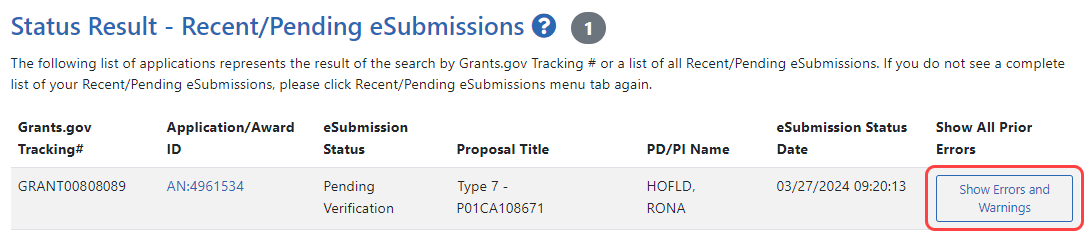
The following information is included in the table:
Grants.gov Tracking #
This column shows the number assigned when the application was submitted electronically to Grants.gov. This is a non-sortable field.
Application ID
The application ID is provided as a link, which when clicked opens the Status Information screen. Status Information includes grant/application information such as status history, study section, contacts, etc. Refer to Status Information for more information.
eSubmission Status
This column shows the status of approval for the application.
Proposal Title
The project name submitted on the application is displayed in this column.
NOTE: In the Proposal Title field, NFP (no further processing) is added to the application title to indicate that the application will not be referred for review.
PD/PI Name
This is the Contact PI on the application.
eSubmission Status Date
This is the date of the latest status update.
Show Prior Errors and Warnings
Click the three-dot ellipsis icon next to the Application ID to select Show Prior Errors and Warnings . Clicking this option opens the Errors/Warnings for Prior eSubmissions screen, providing any errors or warnings received for the application during eSubmission.
TIP:
Use the Export icon ( ) located at the top of the screen to export to Excel or PDF or to print the table data.
To return to the search screen, click the Return to PI Search link at the top of the page.
Viewing the List of Applications/Grants
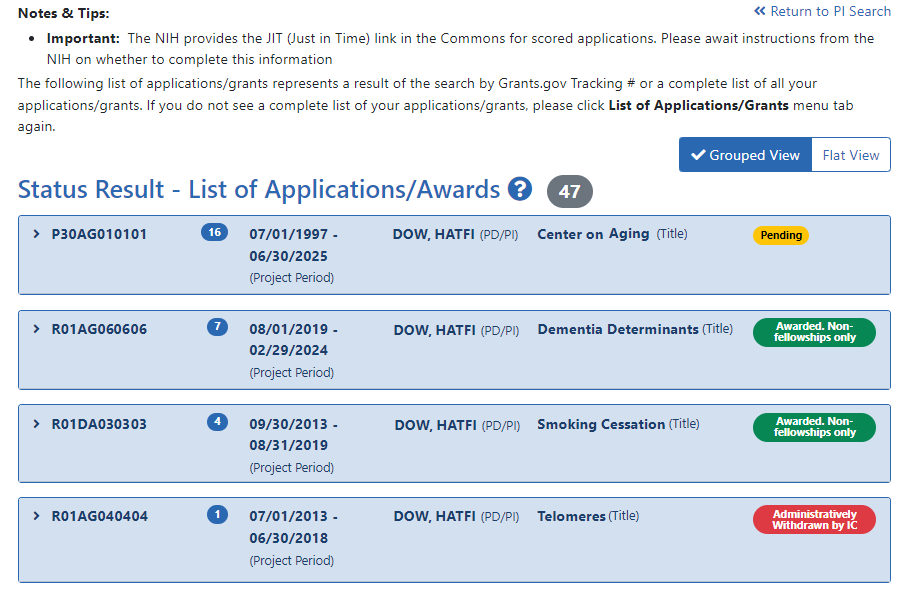
The Status Result - List of Applications/Grants screen provides a collected source of information pertaining to a PI's grants/applications. The screen lets PIs view basic information for their grants; to review detailed information for their grants, including assignments, summary statements, notices of award; and to access other modules in Commons for completing tasks such as progress report, financial statement, etc.
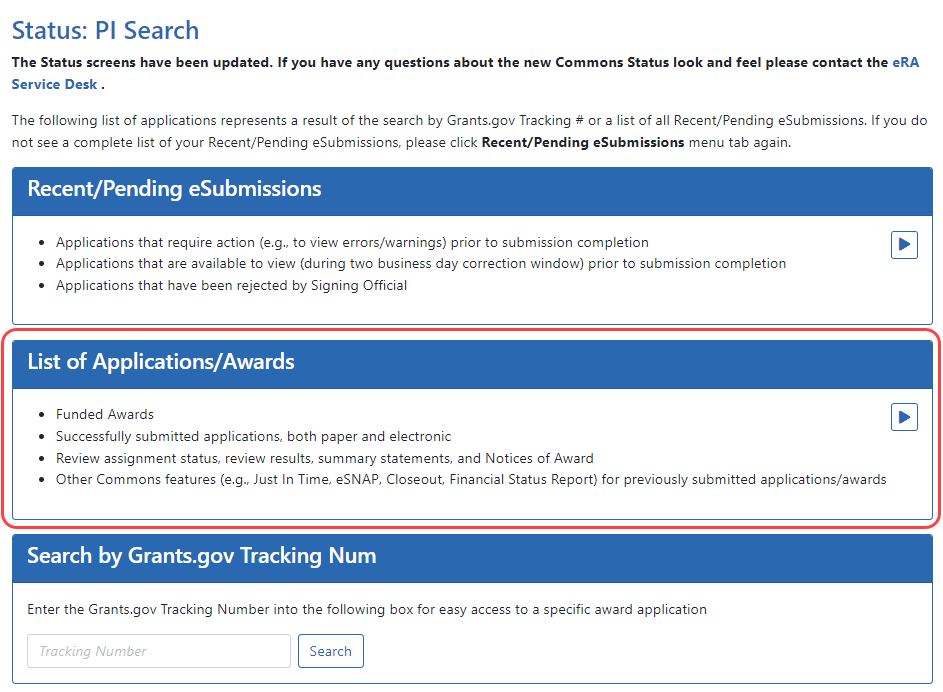
The initial results display the applications collapsed into groups of grant families. From the initial display, you can see the application number (or Application ID Not Yet Assigned where applicable); the number of applications/grants within the family; the contact PD/PI; and the title.
TIP: To find the total number of your applications/grants, look for the number displayed next to the screen title.
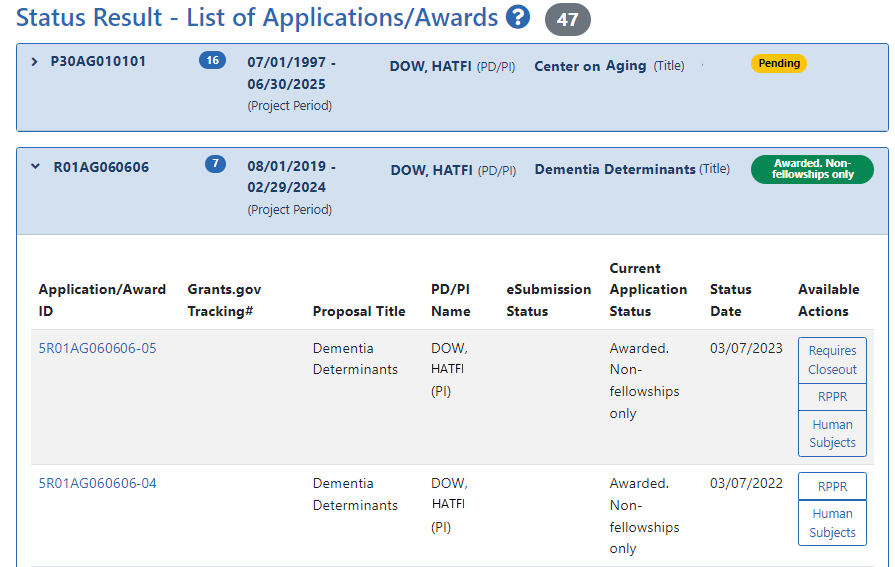
Once expanded, the following information is displayed:
Application ID
The application ID is provided as a link, which when clicked opens the Status Information screen. Status Information includes grant/application information such as status history, study section, contacts, etc. Refer to Status Information for more information.
If multiple PIs exist on the project, an MPI indicator appears next to the application ID.
Grants.gov Tracking #
This column shows the number assigned when the application was submitted electronically to Grants.gov. This is a non-sortable field.
Proposal Title
The project name submitted on the application is displayed in this column.
PD/PI Name
This is the Contact PI on the application.
eSubmission Status
The submission status of the application.
Current Application Status
This column displays the status of the application. To see a list of each application status, see https://www.era.nih.gov/docs/era_status_codes.pdf.
Status Date
The date on which the current status was set.
Available Actions (buttons)
Use the buttons in the actions column to access other modules or features within Commons. Available actions vary depending on the application.
RPPR
Opens the RPPR Menu screen for editing or submitting a Research Performance Progress Report (RPPR). Refer to Research Performance Progress Report (RPPR) Module.
Public Access PRAM
Opens the Progress Report Additional Materials (PRAM) screen for submitting Public Access PRAM. Refer to Research Performance Progress Report (RPPR) Module.
Agency Requested PRAM
Opens the Progress Report Additional Materials (PRAM) screen for submitting IC Requested PRAM. Refer to Research Performance Progress Report (RPPR) Module.
Fellowship Face Page
Displays for Fellowship Awards only
Progress Report Face Page
Only for paper grants not SNAP eligible
JIT
This link is displayed for applications eligible to submit Just In Time materials. Clicking the link opens the Just In Time screen. Refer to Just in Time (JIT) Screen.
Extension
This link opens the No-Cost Extension (NCE) feature. Refer to No-Cost Extension (NCE) for NIH Grants.
Closed
This link opens the Closeout Status screen, which provides information on a closed grant. Refer to Closeout Status.
Requires Closeout
This link opens the Closeout Status screen, which provides a means for uploading the required documents for closeout. Refer to Closeout Status.
Transmittal Sheet
Opens the Transmittal Sheet on which is listed the organization name, proposal title, PI name, grant number, accession number, and proposal receipt date.
Administrative Supplement
For grants having at least one administrative supplement request either in-progress or submitted, but not reviewed. This link is used to view the status of the request.
Relinquishing Statement
Used to access the feature for editing and re-routing the electronic relinquishing statement
Sandy Quarterly Report
For grants identified as NIH Hurricane Sandy Recovery awards. The link opens the Sandy Quarterly Report for editing, saving, and/or submission.
Human Subjects
Provides access to the Human Subjects System (HSS) for viewing and managing inclusion enrollment data for off-cycle reporting, before the progress report is due. This link is available only for those grants requiring inclusion data. For more information about HSS via Status, refer to the separate Human Subjects System Online Help.
IMPORTANT: To submit inclusion enrollment data with a progress report, HSS must be accessed via the RPPR Section G. Special Reporting Requirements rather than through the Inclusion link in the Status module. Refer to the NIH and Other PHS Agency Research Performance Progress Report (RPPR) Instruction Guide for more information.
TIP: Use the Export buttons –located at the top and bottom of the screen– to view the information in an Excel spreadsheet.
To return to the search screen, click the Return to PI Search link at the top of the page.
Searching by Grants.gov Tracking Number
To search for an application by its Grants.gov tracking number, enter the tracking number (including the word 'GRANT'; example: GRANT12345678) into the Tracking Number field of the Search by Grants.gov Tracking Num section and click the Search button.
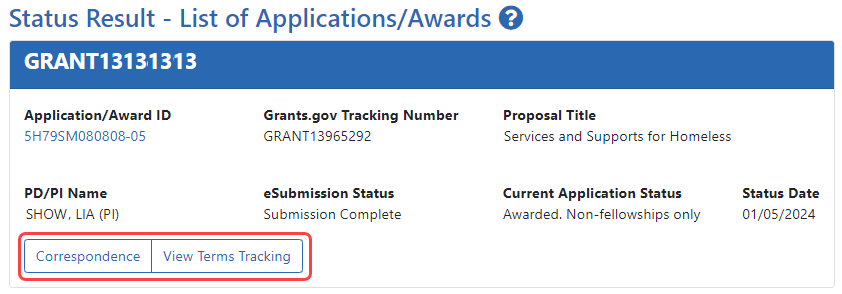
The Status Result - List of Applications/Awards screen returns only the application matching the entered tracking number. Action buttons for the award appear if applicable.
To return to the search screen, click the Return to PI Search link at the top of the page.
Click here for a sample image.
Using Status View for PIs
The PI view of Status shows applications and awards search results in either a Grouped View or a Flat View view, with a check mark next the current view. Click the view names to toggle between them.

Flat view shows all applications and awards in a table of search results, while grouped view shows applications awards grouped by the grant family (related awards that share the same application/award ID).
In tables, you can filter, show and hide columns, download/print data, choose display options, and more. For information on table tools below, see Standard Tools for Tables.

Click the Application/Award ID to open the Status Information screen.
