
Consolidating Multiple eRA Accounts
You can consolidate multiple eRA Commons accounts if you have more than one.
In this topic:
Why Consolidate Multiple Accounts?
Before Consolidating Accounts...
Accessing the Consolidation Request Screens
Consolidating Two or More Accounts
How Do I Log In After Consolidating Accounts?
Why Consolidate Multiple Accounts?
eRA Commons is moving towards more secure login using Login.gov with multi-factor authentication. To enhance login security, eventually all eRA Commons accounts will be required to use a multi-factor authentication method to log into eRA Commons. Multi factor authentication can be accomplished via Login.gov or some Federated login systems that comply with multi-factor authentication standards (Federated login lets you log in through your organization).
You can associate only one eRA Commons account with one Login.gov account. Therefore, prior to moving to Login.gov as a login method, you must consolidate your eRA accounts to only one set of eRA login credentials. When you have only one set of eRA login credentials, that single set of login credentials can be associated with your Login.gov account. (See Detailed Login.gov Steps and Troubleshooting for the steps of associating your eRA account with Login.gov.)
How Does Consolidation Work?
When you request to consolidate accounts, you are really just consolidating the eRA login so that there is a single set of login credentials. Your distinct accounts with different organizations/roles will be preserved after consolidation, and you will be able to switch between those accounts. However, during consolidation you will choose one set of login credentials to keep, and the other login(s) will cease to exist.
For example, suppose you have a signing official (SO) account (username: POTTER_SO) with Hogwarts University and you also have a principal investigator (PI) account (username: POTTER_PI) with Hogwarts. During consolidation, you provide both usernames along with the valid eRA password for each. Then, in your consolidation request, you choose to keep the POTTER_SO account credentials. After consolidation is completed (which is done by the eRA Service Desk), you log in with the eRA username of POTTER_SO, or with Login.gov if you have associated POTTER_SO with your Login.gov account. After you log in, you will be prompted to choose between your organization and role category of PI/Hogwarts or SO/Hogwarts. The POTTER_PI login credentials no longer exist.
When you create an account consolidation request, the consolidation does not happen immediately. Your choices are automatically entered into a service desk ticket and sent to the eRA Service Desk, who vets each request and compares the personal information such as first and last name, and possibly other information, to verify the two accounts belong to the same person. A confirmation email is sent to the contact emails of all accounts you chose to consolidate. Another email follows once the request has been completed.
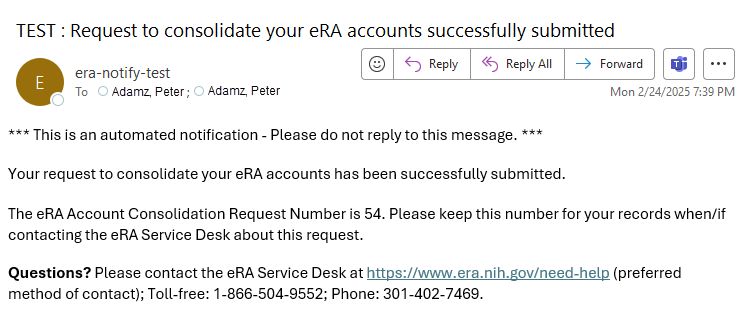
After you send the consolidation request, the accounts remain separate until the eRA Service Desk completes the request. When the eRA Service Desk completes the request, they will send you an email letting you know. At that point, you will ONLY use the single eRA credentials that you chose to keep.
If the eRA Service Desk finds a problem, such as the names not matching between the two accounts, they will contact you directly for more information.
IMPORTANT: If you need to contact the eRA Service Desk regarding the request, take note of the Account Consolidation Request Number in the above email.
Before Consolidating Accounts...
Before consolidating the accounts, you must know:
-
The username of each account that you want to consolidate
-
The valid working password of each account that you want to consolidate
If you don't know the username, contact your signing official for help. See the topic, Signing Official (SO), for information on how to find your signing official.
If you don't know the passwords, you can use the 'Forgot Password/Unlock Account' option on the eRA commons home screen. This option works only if the email you provide during the password reset matches the contact email that you have stored in Personal Profile because the new password is sent to that email. If you have trouble resetting your password, then you must contact your signing official for help. If you reset your password, make sure to update the temporary password, as a temporary password cannot be used in the consolidation screens.
Accessing the Consolidation Request Screens
There are two ways to reach the screens where you can submit a consolidation request to the eRA Service Desk.
The first is via the popup screen below, which appears when you log into eRA Commons. Click the Submit a Request to Consolidate button on the popup to enter the consolidation request screens.
The second way to access the consolidation screens is to click the Person icon  in the upper right corner of eRA Commons and select the Consolidate Accounts option.
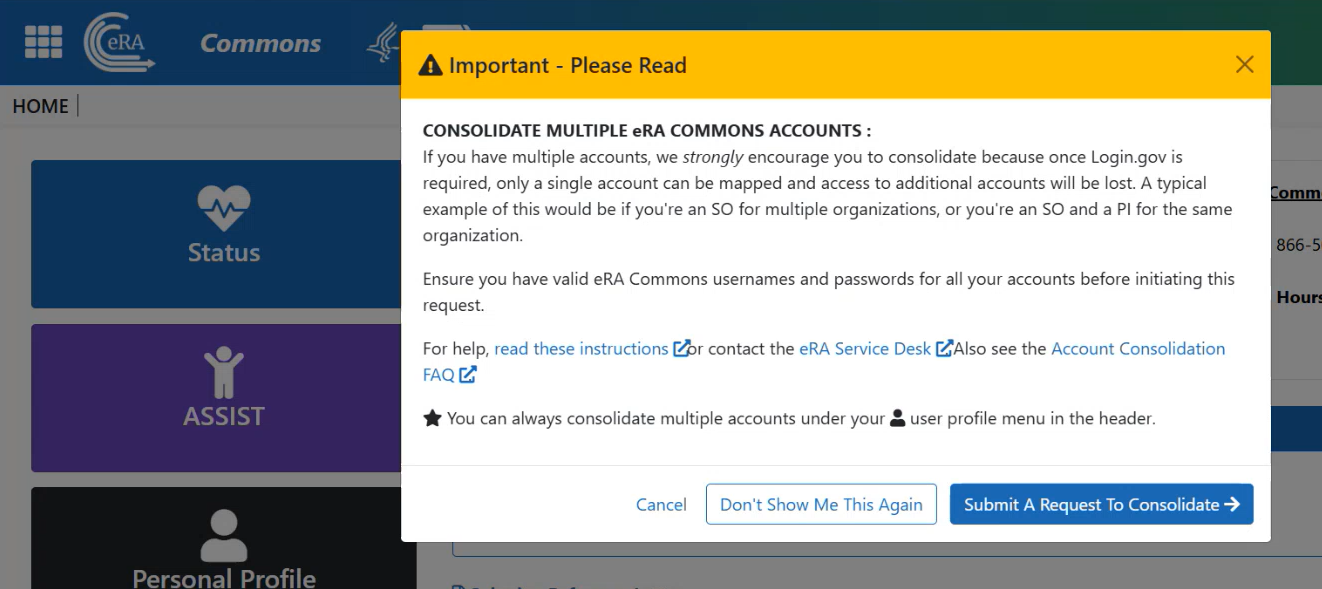
Click Cancel to close the popup one time. It will reappear each time you access the eRA landing screen.
Click Don't Show Me This Again to prevent the popup from every appearing again. If you choose this option, but later decide you want to submit a consolidation request, you can always access the consolidations screens via the Consolidate Accounts option in the Person menu .
Consolidating Two or More Accounts
To request the consolidation of two or more accounts:
-
Access the Request to Consolidate eRA Commons Accounts screen; see Accessing the Consolidation Request Screens.
-
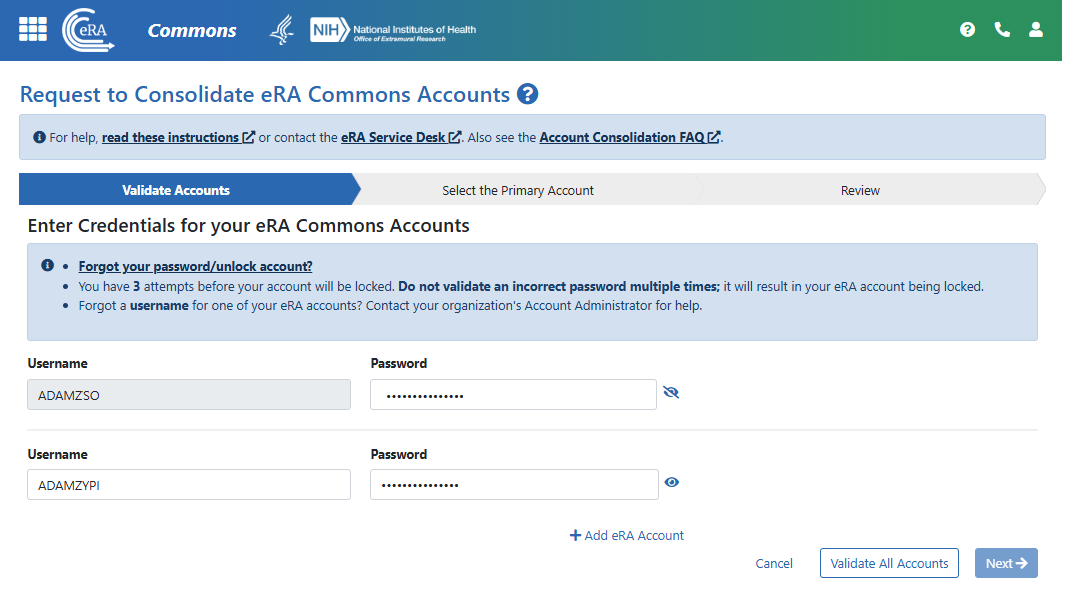
Enter the usernames and passwords of the accounts to be consolidated. Click Add eRA Account to add more accounts.
-
To be sure that the passwords work, click the Validate All Accounts button. If the name and password is correct/valid, a checkmark and the word 'Verified' appears.

-
Click the Next button if the accounts validated successfully. The Select the Primary Account screen appears.
-
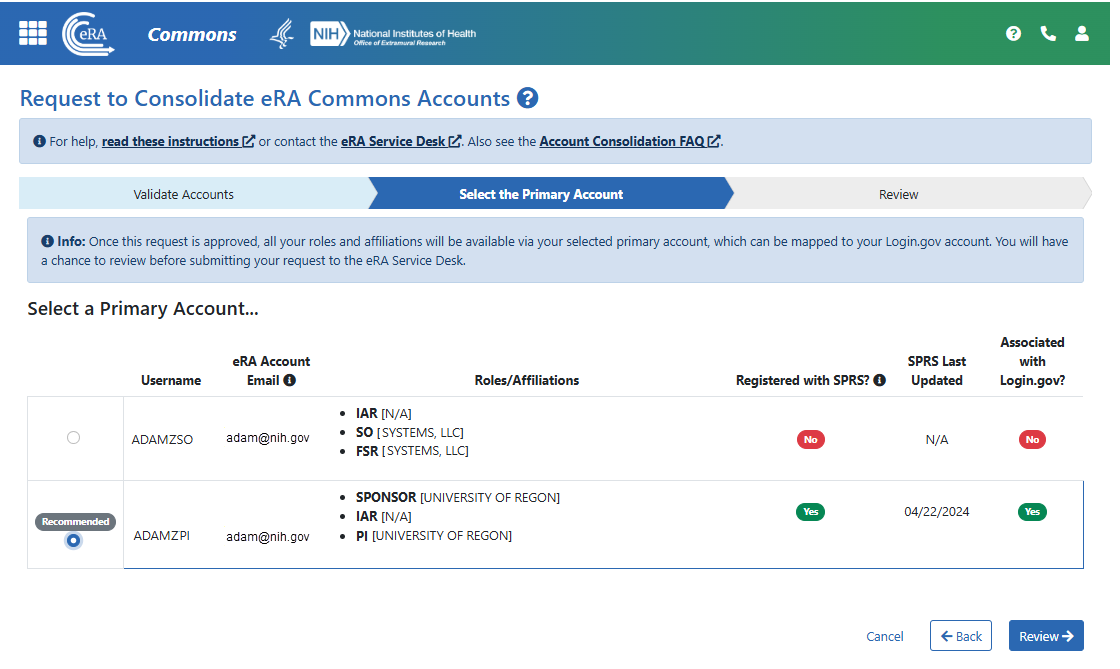
Click the radio button of the account to be the primary.
Both accounts' information will be preserved, but after consolidation, you will log in only with the primary account credentials. The screen recommends a primary account based on whether it is already associated with Login.gov or registered with SPRS (Secure Payee Registration System) or not. It is better to choose the account that is already set up with Login.gov and/or SPRS so you don't have to reconfigure those connections.
-
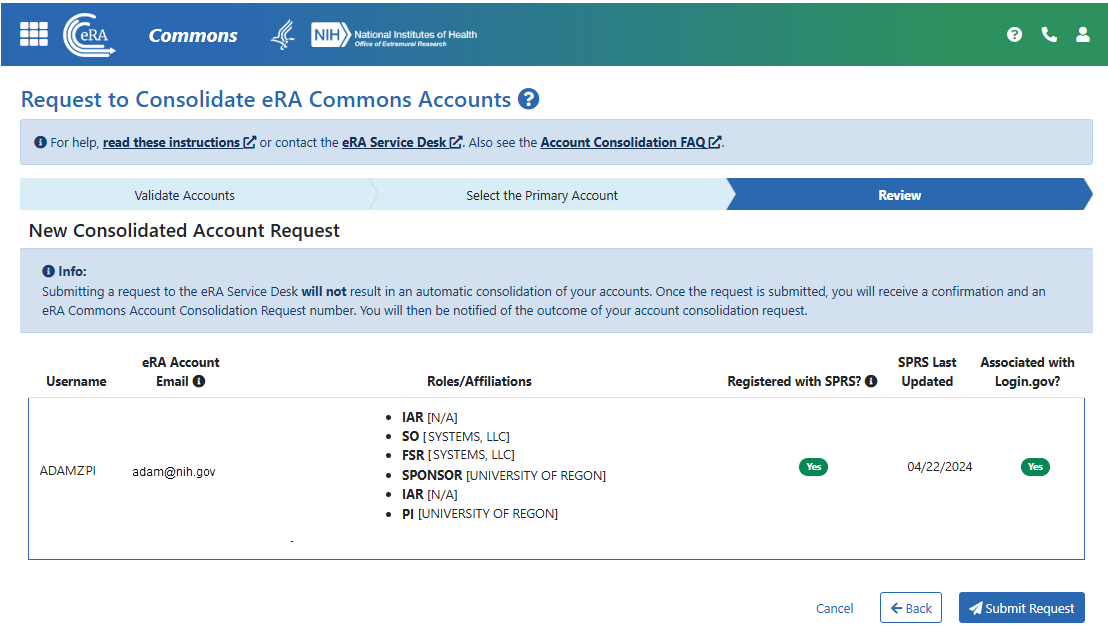
Click the Review button. The Review screen appears.
-
On the Review screen, look everything over, then click the Submit Request button.
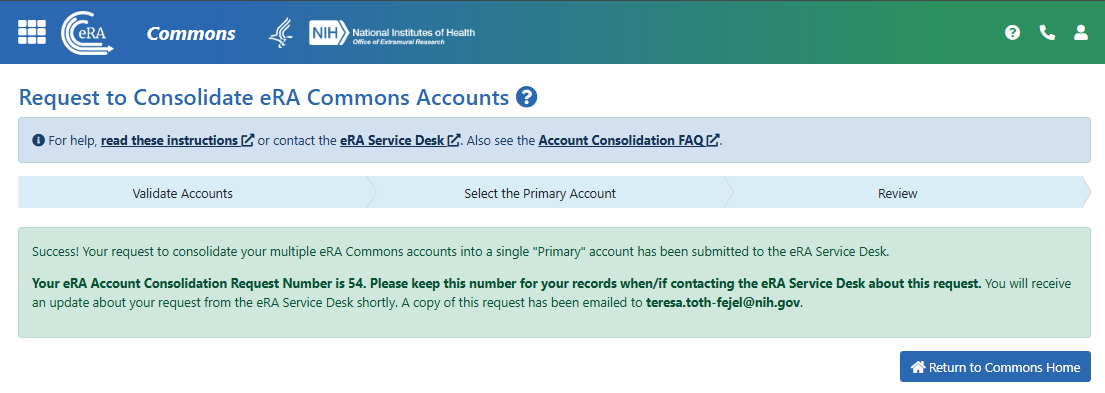
The request is sent to the eRA Service Desk. All contact emails of the accounts to be consolidated receive a confirmation email with an Account Consolidation Request Number. Note this number in case you need to contact the eRA Service Desk about the request.
How Do I Log In After Consolidating Accounts?
-
After the eRA Service Desk contacts you to let you know that your accounts are consolidated, log in as you normally do (either eRA credentials, federated account, or Login.gov) with the account that you designated as 'primary'.
NOTE: If any of the accounts that were consolidated were required to use Login.gov, then that requirement will now apply to the consolidated account. For example, suppose you consolidate the following:
POTTER_SO with Login.gov=OPTIONAL
POTTER_PI with Login.gov=REQUIRED
and you chose POTTER_SO as the primary account during consolidation. When you log in with POTTER_SO after consolidation, Login.gov will now be REQUIRED.
You will randomly be logged into one of the accounts that were consolidated. Check the Person icon to see which organization and role you are currently working with.
-
Click the Person icon and select Switch Organization / Role Category.
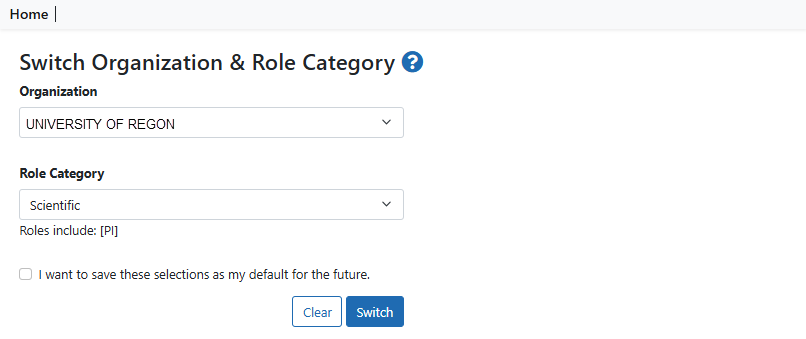
The Select Organization & Role Category screen appears.
-
Choose the organization and type of role category (scientific or administrative) to log in as. The roles for your choice are listed below the Role Category dropdown.
-
To save this choice so that you are always automatically logged in as with this organization and role category, click the checkbox.
Switching Organization and Role Categories
You can switch between sets of roles at any time while you are logged into eRA Commons, but be sure to save data on ALL open eRA Commons pages prior to switching.
To change to another organization and role, select Switch Organization /Role Category from the Person menu .
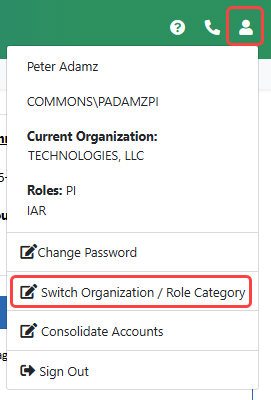
A message appears warning of data loss if any screen has data changes but is unsaved. Switching users is like logging out and logging in again, so any unsaved data on any eRA screen where you have been editing will be lost if not saved prior to switching.
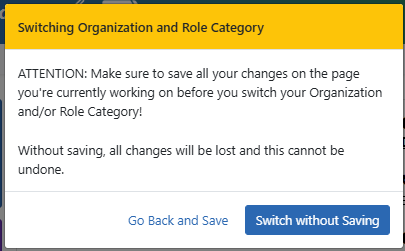
When you click Switch without Saving, you see the Select Organization & Role Category screen; see the previous section above.
To check which role you are logged into at any time, click the Person icon .
Check Your Personal Profile After Account Consolidation
During account consolidation, your Personal Profile is merged. While every effort is made to retain the correct information, unexpected results can occur if conflicting information was found in the Personal Profile. Check your Personal Profile over carefully after consolidation and correct any inaccuracies or incomplete data.

