
Commons User Account Search Results
Click the Search button and the search results display below the Search Criteria section on the Search Accounts screen.
NOTE: The Create New Account button does not display until you perform a search.
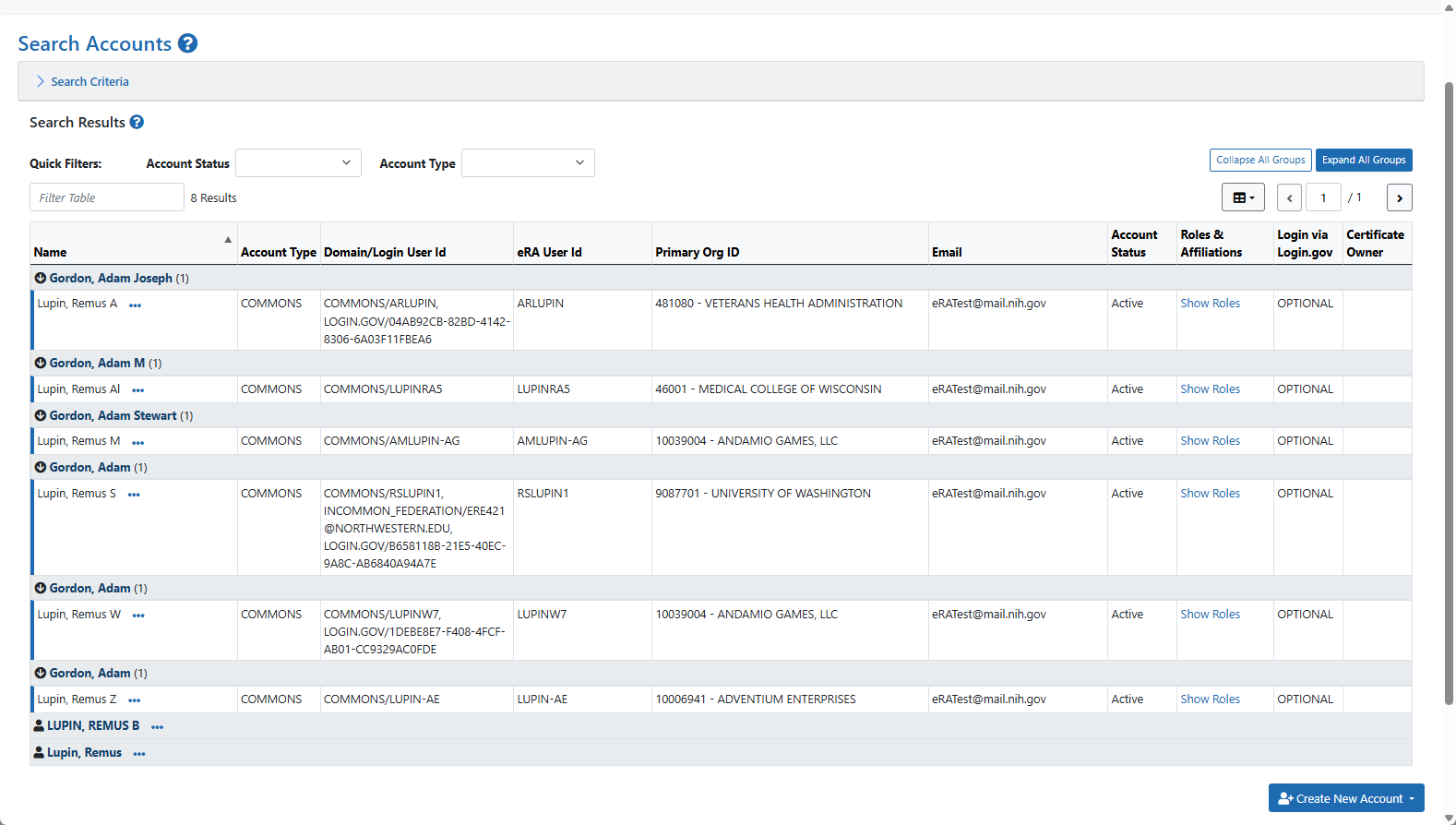
Commons user account search results
Search Results Columns
The following columns are displayed in search results
Name: The name displays in last name, first name middle name format
Account Type: The type of account displays here (i.e., agency, Commons, system)
Domain/Login User Id: The external system user ID/login ID displays here
eRA User Id: The eRA user ID/IMPAC II user ID displays here
Primary Org ID: The primary organization name on the account displays here
Email: the email address on the account displays here
Account Status: The status of the account displays here (i.e., Active, Locked, Pending Affiliation, etc.)
Roles & Affiliations: The account's roles and role context values display when the user clicks the Show Roles hyperlink in this column
Login via Login.gov: The status of if multi-factor authentication is required or not (whether the user is required to use Login.gov to login or not displays here)
Certificate Owner: The owner of the certificate account displays here
Action
Click the three-dot ellipsis icon next to an account name to display the actions dropdown available for that account. Depending on the roles, status, and/or type of account, different actions display:
-
Active/Pending Affiliation Commons Account - manage account and create a system account using the Profile button
-
Deactivated Commons Account - view account and create a system account using the Profile button
-
Pending Commons Account - resend email and create a system account using the Profile button
-
Deactivated System Account - view account and create a Commons account using the Profile button
-
Manage Account - update email and add roles
-
Active/Pending Affiliation System Account - manage the account and create Commons account using the Profile button
-
Click Show Roles for an account to view all roles associated with the account.
Commons Account Action Options
Create Account
-
To create a new account and profile, click the Create New Account button at the bottom of the screen, or find the correct User ID and click the Create button.
-
Refer to the Create Commons User Accounts topic for more information.
Manage Account
-
The Manage button appears if the account status is Active or Pending Affiliation.
-
To edit an account, click the Manage button and the Manage Account screen displays.
-
Refer to the Manage External User Accounts topic for more information.
Resend Email
-
The Resend Email button appears on the Search Accounts screen for accounts that are pending user review, indicating that the user has not validated the account request.
-
Click Resend Email to resend the account confirmation email.
Modify Search Results
To view the Search Criteria, click anywhere in the Search Criteria bar.
- To filter the search results, enter the appropriate alphanumeric value in the Filter Table text field. The search results automatically filters matching text as you type.
- For example, to view all users with the Internet Assisted Review (IAR) role, type IAR in the Filter Table text field.
- To change the number of records per page, select the appropriate number in the Show per page icon. The default number of records per page is 10.
- To navigate between pages, perform one of the following options:
- Click the appropriate page number button.
- Click the right arrow button to go to the end of the list.
- Click the left arrow button to go to the beginning of the list.
- To sort the search results, click the click the appropriate column heading name's down arrow (ascending sort) or the up arrow (descending sort). The default sort is by Name (last name, first name).
- To view the NIH Support View screen, select the appropriate name hyperlink in the Name column.
- For more information, please see the NIH Support View topic.
- If displayed, click the Read More hyperlink in the Roles and Affiliations column to view a principal investigator's (PI) multiple affiliations.
- To return to the top of the screen, click the yellow Back to top icon in the bottom-left corner of the screen.
