
Managing Commons User Accounts
The following roles can manage accounts:
- Account administrator (AA)
- Administrative official (AO)
- Business official (BO)
- Signing official (SO)
- Perform one of the following steps to manage a user account:
- Click the Manage button for an account on the Search Accounts screen.
- Click the Manage button on the Account Details screen after an account has been created or saved (edited).
Clicking the Manage button opens the Manage Account screen.
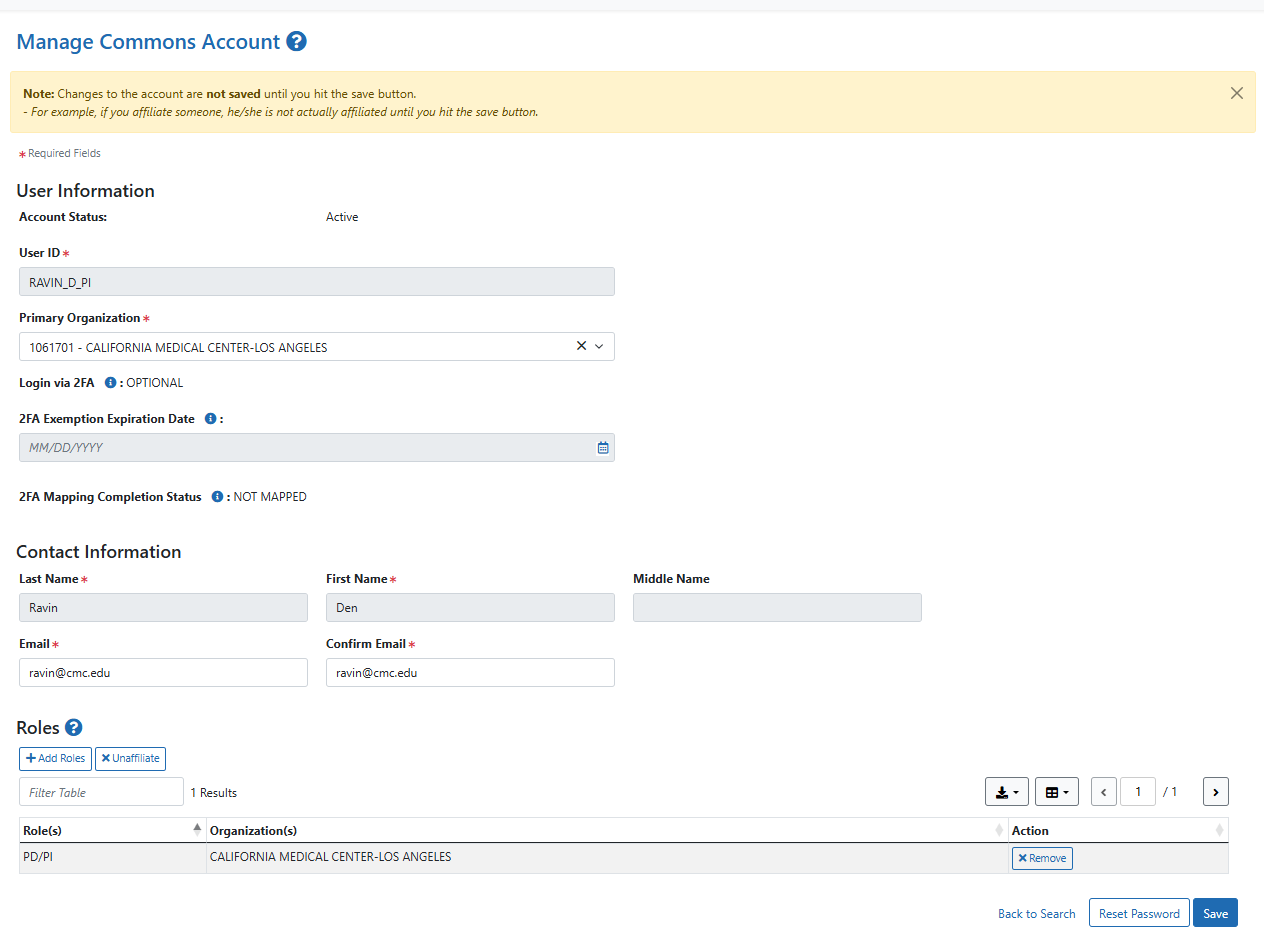
Manage Account screen for a Commons account
Actions
You can perform the following actions:
Edit the Email addresses.
Add Roles: Click the + Add Roles button to add or delete roles. For more information, see Add/Delete Roles.
To affiliate an account with an organization, click the Affiliate button, if displayed.
Note: An affiliation can be created for accounts that are either not currently associated with an institution, such as an account solely with the Internet Assisted Reviewer (IAR) authority role, or for accounts that need to be associated with multiple institutions. Users with the AA or SO role may create an affiliation for their organization only. For more information, see Affiliate Account.
If the Unaffiliate button is present, you can click it to unaffiliate an account. For more information, see Unaffiliate Account.
Two-factor authentication (2FA)
-
Login via 2FA — Shows the status of Login.gov for this account: Required, Optional, or Exemption. This field is set automatically at the organization level.
-
2FA Exemption Expiration Date — When Login via 2FA is set to "Exemption," this field displays the end date for the exemption. The user can log in using eRA credentials until this date.
NOTE: 2FA exemptions are only granted on a limited basis by the eRA Service Desk and only the eRA Service Desk can modify the dates.
-
2FA Mapping Completion Status — Indicates whether the user's account is Mapped or Not Mapped for 2FA.
NOTE: Administrators do not have the ability to deactivate or reactivate accounts, and should contact the Service Desk for assistance on a case-by-case basis.
Account Statuses
AMM user accounts can have the following statuses:
- Active — a valid account in good standing
- Deactivated — the account has been disabled by an administrator
- Pending — the account is pending approval
- Pending Affiliation — the account has not yet been associated with an organization
- Profile Only — a profile that is not associated with a user account
NOTES:
- Administrative and reporting roles such as SO, AA, AO, FSR, etc., cannot be combined with scientific roles such as PI, TRAINEE, ASST, etc.
- Only accounts with scientific roles such as IAR, PI, TRAINEE, POSTDOC, etc., may have multiple affiliations. If an account has any roles in addition to these, additional affiliations cannot be added.
- Grayed-out fields cannot be edited.
