
Unaffiliate Account
- To unaffiliate an account, click the Unaffiliate button in the Roles section of the Manage Account screen.
When the Unaffiliate button is clicked, an Account Unaffiliation popup displays.
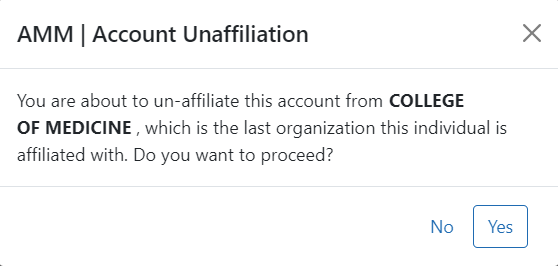
Account Unaffiliation popup
-
Click the Yes button to unaffiliate the account, or click No to cancel the unaffiliation.
After unaffiliating the account, all roles assigned to the account are removed, the account is placed in Pending Affiliation status, and the Affiliate button appears in the Roles section of the Manage Account screen:
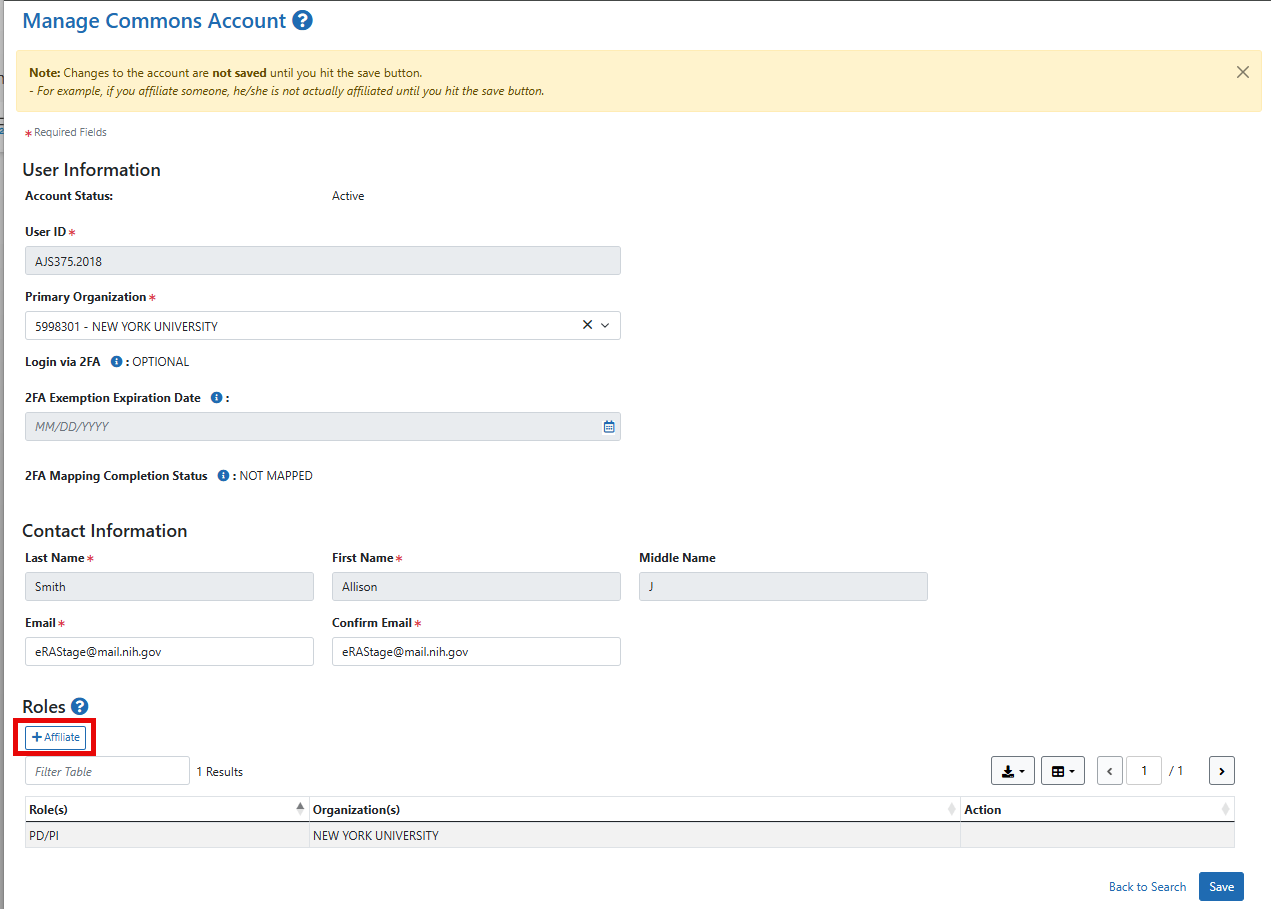
Affiliate button in Roles section on the Manage Commons Account screen
Organization Transfer Process
- The account coordinator will unaffiliate the account by removing all roles for their organization.
- The account will go into Pending Affiliation status, in which there are no roles associated with the account and the user cannot perform any functions.
- An account coordinator from the new organization will search for accounts in Pending Affiliation status and select an account to affiliate and add the appropriate roles for the new organization.
For information on affiliating an account, see Affiliate Account.
