
SAMHSA Online Critiques & Scores
Overview of the SAMHSA Scoring Process
-
SAMHSA reviewers enter a score from a range of 0 to the maximum allowed score for the criterion (also called Criterion Point Value). The higher the score, the better the application.
-
Each criterion’s Criterion Point Value translates to a percentage of 100, with the sum of all criteria weights totaling 100.
-
A chart displays point ranges, based on the scores entered, that indicate whether the application is unacceptable, marginal, acceptable, very good or outstanding.
-
The criteria for an application differ depending on the Funding Opportunity Announcement for which the application was submitted.
The criteria are displayed on the Submit Critique and Scores screen along with the following:
- Score column for entering each criterion’s score
- Criterion Point Value, which represents the max number of points that can be assigned to the criterion
- Criterion Point Value ranges, which indicates the range of value points associated with each qualitative assessment (e.g., Outstanding, Very Good, etc.)
For more information in SAMHSA scoring, please see SAMHSA - Scoring Overview.
Open and Complete the Critique
Follow these steps to complete the online critique:
- Go to the List of Applications or List of My Assigned Applications screen in Internet Assisted Review.
- In the Application Number column for the application you are critiquing, click the three-dot ellipses icon and select the Submit Critique option.
 Online Critique screen opens.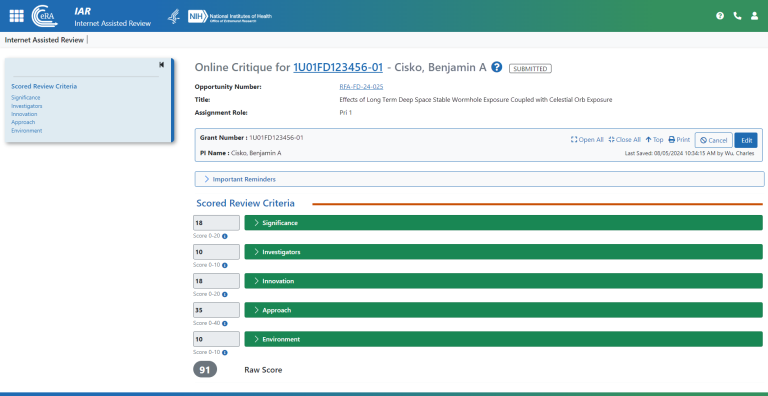
- Optionally, review the Important Reminders heading by clicking on the heading text Important Reminders in the blue bar. This might contain instructions, set by the SRO, that are relevant for the current meeting.
- Click the green headers in whatever order suits you and begin filling out the critique. Use the tab key to jump from field to field.
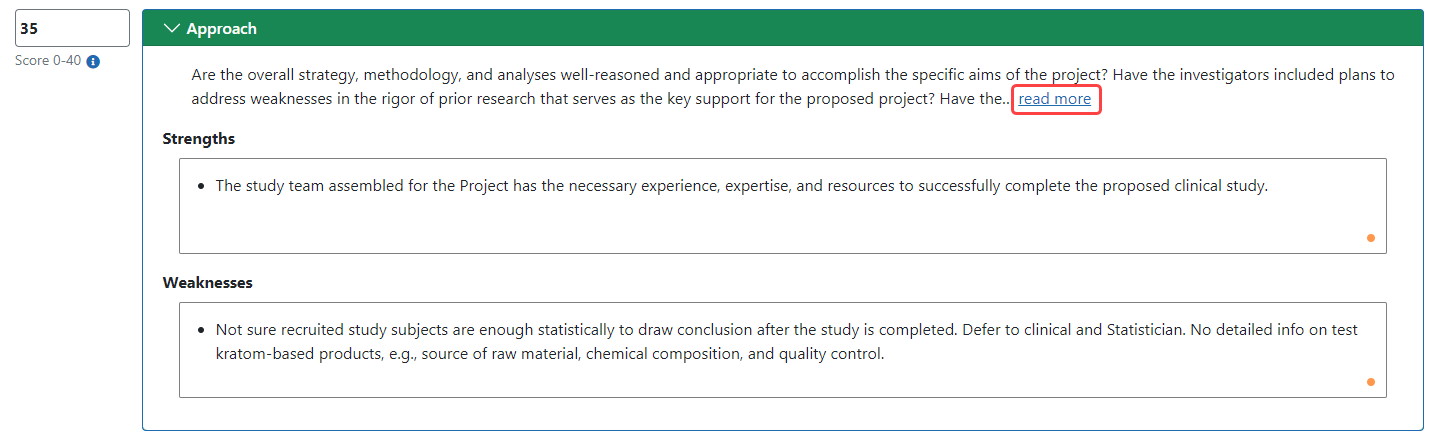
- For each review criteria, read all guidance at the top of the editing area by clicking the read more link, which shows all available guidance for the criteria item.
- Select scores from the Score dropdown menu. Enter a score ranging from 0 to the maximum allowed score for the criterion (the higher the score, the better the application).
- Enter your comments in text fields. See SAMHSA Online Critiques & Scores. As a best practice, to ensure you don't forget a field unintentionally, enter N/A or none in the field if you have no comments for the field. This reduces warnings about empty fields when you submit the critique.
Editing in a Critique Text Field
When you click in a field, a toolbar appears with formatting tools:

The first six of these are familiar to most users, and are bold, italic, underline, strikethrough, subscript, and superscript. You can hover your cursor over any editing tool to see its name and its keyboard shortcut keys if available.
The less familiar icons are explained below.
|
Formatting Button |
Action |
|---|---|

|
Removes all formatting from selected text. |

|
Numbered List/Bulleted List tools. Bullet or number the selected text. |

|
Special character tool. Opens a Select Special Character window, from which you can choose special characters. While you can copy and paste from other applications to the Online Critique screen, special characters might not be rendered correctly in the final critique if you do so. It is recommended that you use the special character editing tool for inserting special characters to ensure correct rendering of special characters. |

|
Undo and redo tools. |
Spelling and Grammar Checker
The Online Critique text boxes have an advanced spelling and grammar checker. The status of the checker is indicated by a colored dot in the bottom right corner of the text field.
The status colors are:
- Orange – the checker is enabled
- Red – there is a least one suggestion found within the text.
- Gray – the checker is disabled
Spelling suggestions are underlined with a red line, while grammar suggestions are underlined in blue.

Hovering over a suggestion provides a list of options.

The suggestions can be ignored by clicking the Ignore all button, or the word can be added to the local dictionary by clicking the Add Word button.
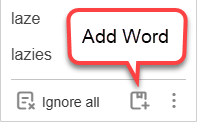
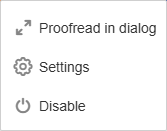
The three-dot More options icon provides three additional selections.
-
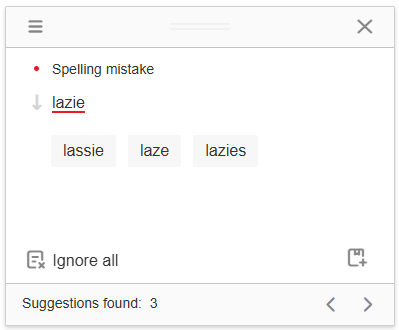
Proofread in dialog – opens a dialog box in a separate window. The window shows the current issue and possible suggestions. At the bottom of the window, the number of suggestions is shown and navigation buttons let you scroll to other issues/suggestions.
-
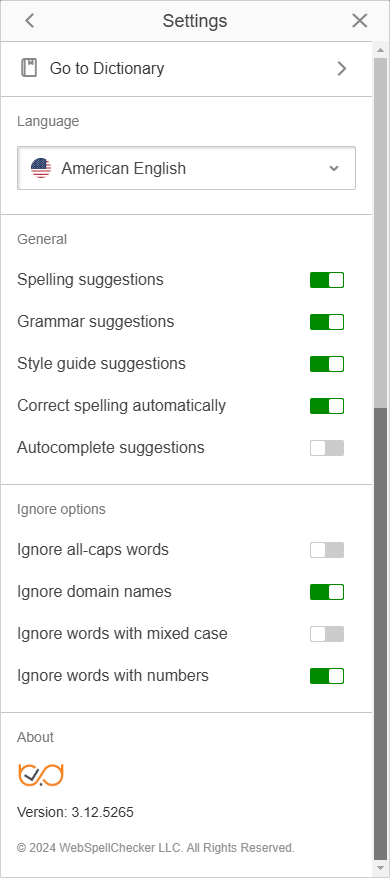
Settings – Opens a dialog box with a variety of options that can be selected or toggled on and off using the corresponding toggle switch.
-
Disable – turns the checker off and set the status color to gray.
Clicking the status dot provides the same options as described above:

- The power switch icon disables/enables the checker.
- The gear icon opens the Settings dialog box.
- The double arrow icon opens the Proofread in dialog window.
- The numbered circles represent the number of suggestions.
When all the suggestions have been reviewed and updated, a circled checkmark appears in the bottom right corner.

Submit the Critique
After you fill out the critique completely, you are ready to submit. Make sure you are on the Online Critique screen and do the following:
- In the gray summary box at the top of the Online Critique screen, click the Submit button.

- If any entries are not completed, a warning dialog lists the incomplete fields.
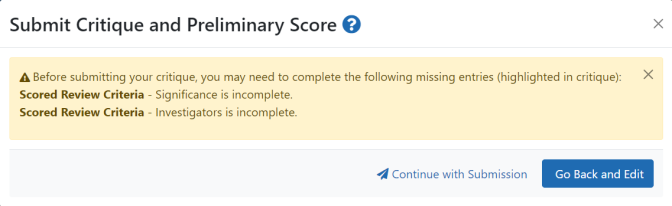
- Click Continue with Submission only if you know the omissions to be valid and intentional.
- Otherwise, click Go Back and Edit.
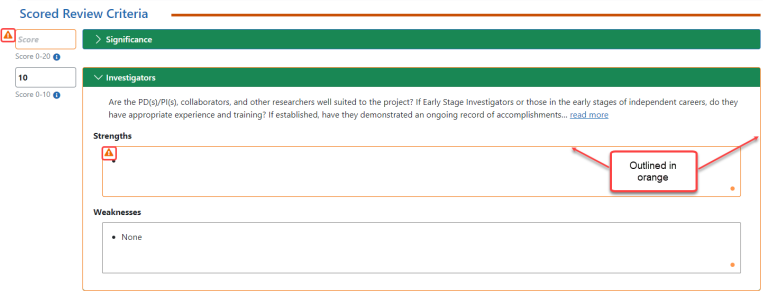
- Fill out the incomplete entries if necessary; if you are sure you want them blank, then you can leave them blank and submit regardless.
- Click the Submit button again, and if necessary, click the Continue with Submission button if you want to leave blanks.
Submit Critique and Preliminary Score window appears. 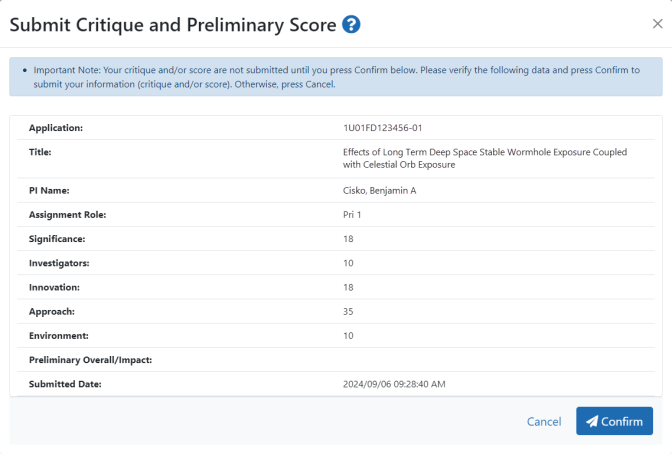
- Review the information and click the Confirm button to complete the online critique submission.
Amessage appears at the top of the screen indicating successful submission.

At this point, a submitted critique is saved into the system. If you later decide you want to edit the submission, you can do so; see Make Changes to a Critique After Submitting.
You can view your own critiques and scores as well as those of other reviewers (when permitted) once you have submitted them. The process by which critiques are viewed differs from phase to phase. Refer to Viewing Critiques for a description of the phase-specific method of viewing critiques.
