Searching for and Modifying Existing Prior Approval Requests
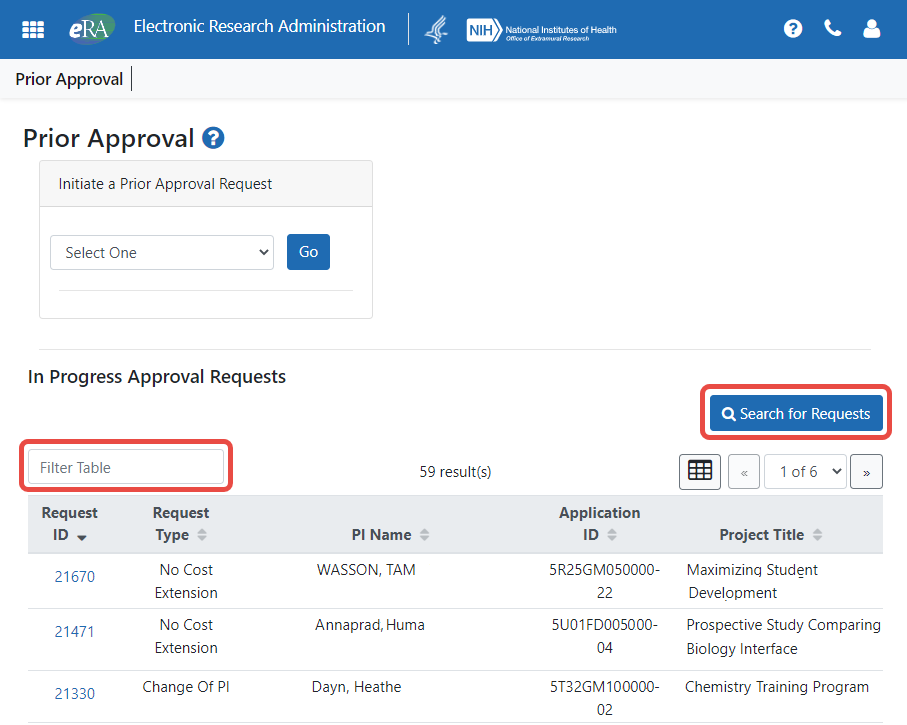
Signing officials (SO), who see all the in-progress Prior Approval requests at their organization, have a Search for Requests button on the Prior Approval landing screen as well as a Filter Table field to find records with matching text. An SO can search for, view, and modify in-progress requests for the organization to which the SO is affiliated.
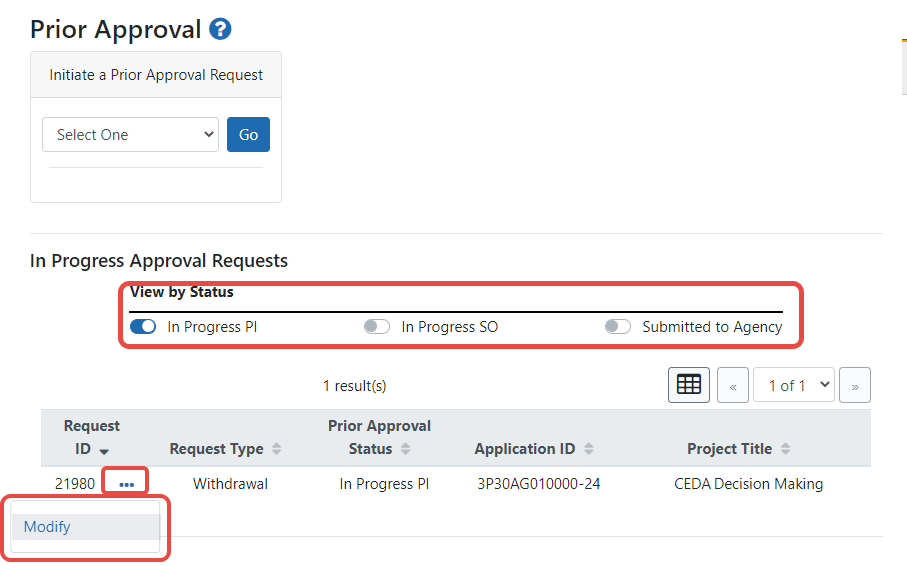
A principal investigator (PI), who typically has few in-progress requests, can filter using three quick toggles. The PI sees self-initiated requests or requests that have been routed to the PI.
SO: Search for a Request
- On the Prior Approval landing page, click Search For Requests.
 Click here to view the button.
 - Alternatively, you can type text in the Filter Table field to show only those records with matching text, and you can click the request ID of any in-progress item to modify it. Click here to view the field.
-
The "Search Prior Approval Requests" screen opens, where you enter search criteria.
click to view)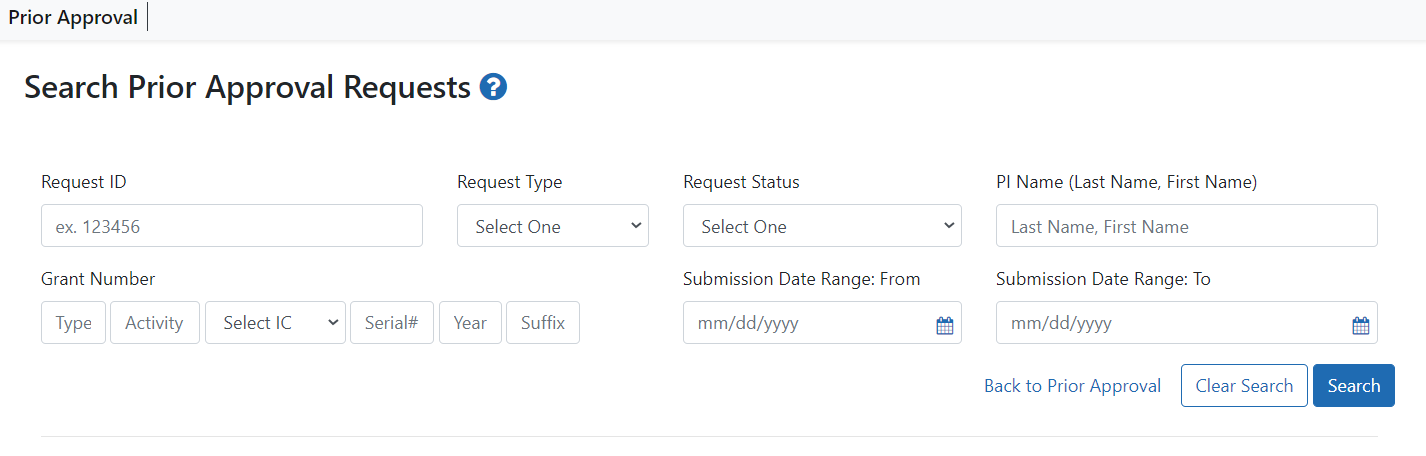
- Specify the following criteria and click Search:
- Request ID
- Request Type; lets you narrow your search to just one of the Prior Approval request types.
- Request Status; lets you search for In Progress SO (assigned to the SO, either by SO initiation or routing from a PI), In Progress PI (assigned to the PI, either by PI initiation or routing from a SO) or Submitted to Agency. Submitted requests cannot be changed, but you can view their history or view the PDF of the final information submitted.
- PI Name. Names of valid, matching PIs begin to appear as you begin typing
- Each discrete part of the grant number (Activity Code, IC, Serial, etc)
- Submission Date Range (From: and To:)
- In the results, use the three-dot ellipsis menu on a record to perform actions, such as viewing the PDF or history, or modifying (if not yet submitted). If the request has been routed, you see View under the three-dot ellipsis menu, which opens a read-only view of the request's details. Also see Viewing History of a Request.
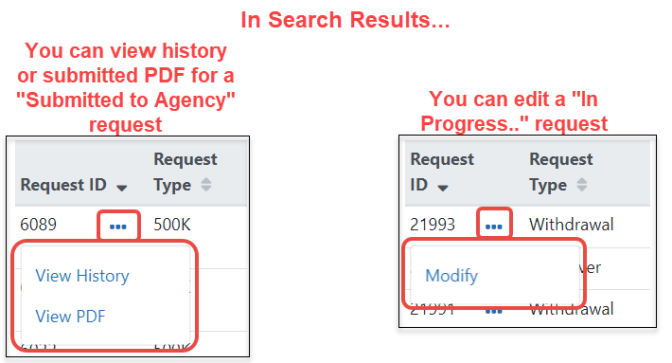
If you choose Modify, the request details screen opens for the type of request. For details on editing a specific type of request, see:
Prior Approval - No Cost Extension (SO only)
Prior Approval - Other Request (SO only for FDA grants only)
Prior Approval - Withdrawal Request (SO or PI)
Prior Approval - Carryover Request (SO only)
Prior Approval - Change of PD/PI on a Grant (SO only)
PI: Search for a Request
By default, all in-progress requests initiated by you or routed to you are displayed on the Prior Approval landing page. Use the three View by Status toggles to show only requests of a certain status. Once you find a request, you can click its three-dot ellipsis icon and select Modify to edit it. If the request was initiated by you, but you have routed it to an SO, it is read-only and you can click its three-dot ellipsis icon and select View.