
Additional Materials Screen for Grantees
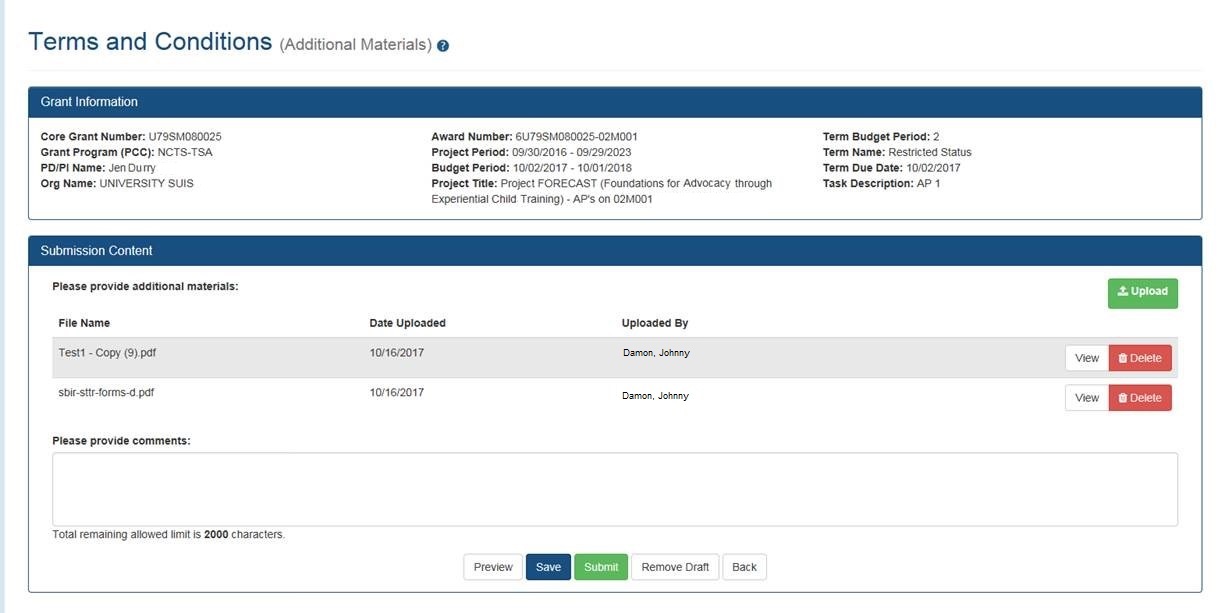
This screen opens when you click the Prepare Documentation or Revise Documentation action in the View Terms Tracking Details screen. Use this screen to upload and attach documents to a tracked term, or to view and edit existing attachments.
You can upload up to 10 files (PDF format only, maximum 6mb each). The uploaded files will be consolidated intro a single PDF attachment.
Actions
- Upload — Click to browse and select a file to upload;
and click again as needed to add additional files: another document row will be added to the grid; Browse to select the file to upload. You can include up to 10 files in a single attachment.
Note: Alternatively, you can drag and drop up to 10 files at a time from your computer to the Submission Content area of the screen for to upload multiple files in one operation. - Delete — Click to delete a file.
- Comments — Enter your comments about this submission: They will be included in the consolidated PDF attachment.
- Preview — Click to preview the complete attachment document: a consolidated PDF that includes the content of all the upload files plus the comments.
- Save — Click to save the upload files and the comments. You can click Save anytime, and return later to continue working on the submission. You must click Save to save any comments you entered.
- Submit — Click to send materials to the awarding agency
- Remove Draft — Cancel the document submission: If there was no previous submission then click to delete all uploaded files and comments and close the screen. If this is a revised submission then click to delete any changes (new uploads and/or comments) made since the last Submit action. Files and/or comments made in the previous submission will be kept.
- Back — Click to return to the View Terms Tracking Details screen. Note: Comments changes won’t be saved unless you click Save or Submit. Any changes to file uploads will be retained in your draft until you click Submit.
