
List of Applications in Read Phase
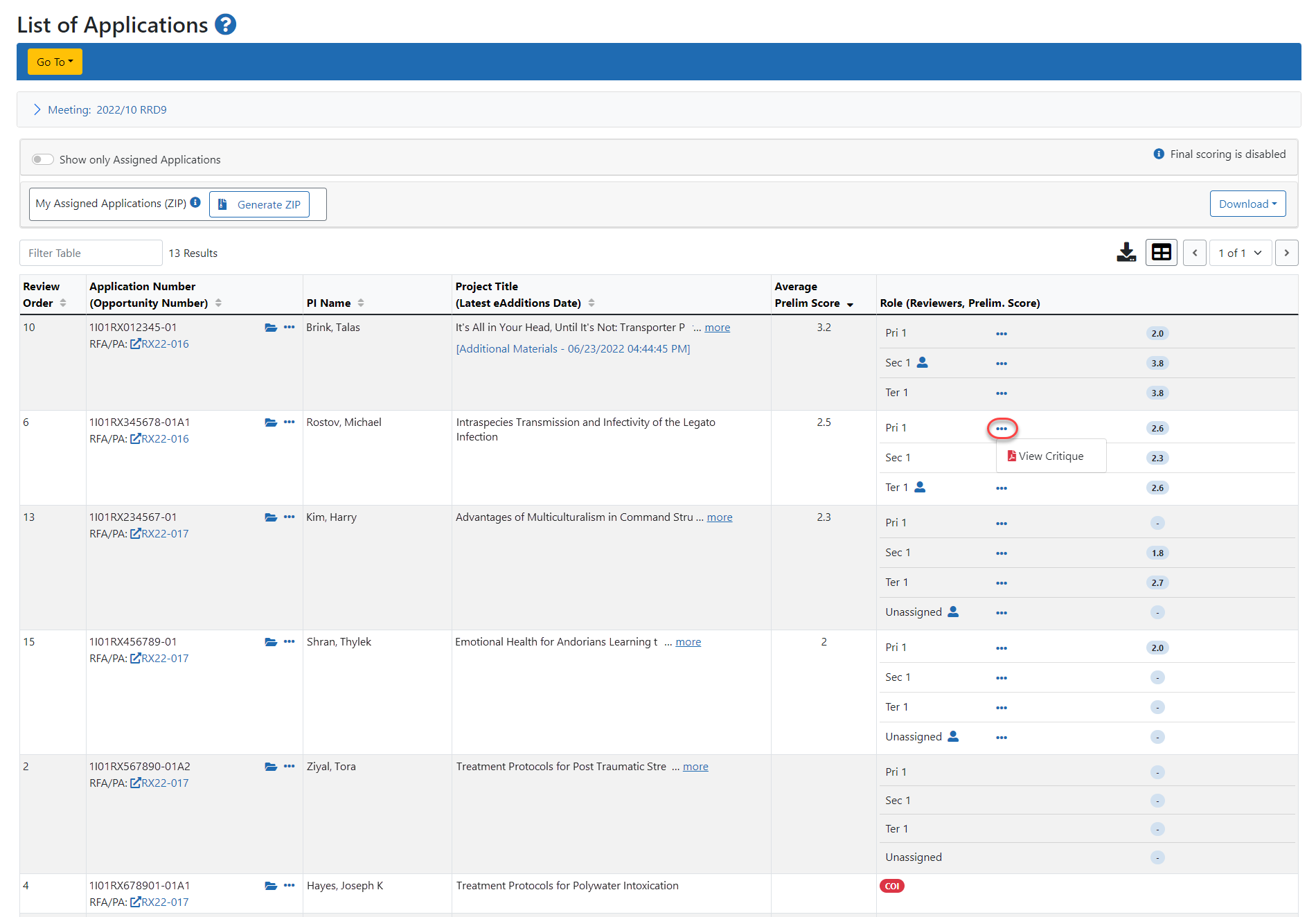
Typically, reviewers are able to view the critiques of other reviewers during the Read Phase. As in other phases, any applications with a conflict are blocked and display COI as the Assignment Role. By default, only the reviewers’ application assignments are displayed in the list; however, by toggling off the Show only Assigned Applications toggle switch, the system presents a view of all applications in the meeting.
NOTE: To return to a view of only assigned applications, toggle the Show only Assigned Applications switch to the on position.
 Click here for an image of the default view of List of My Assigned Applications in the Read Phase
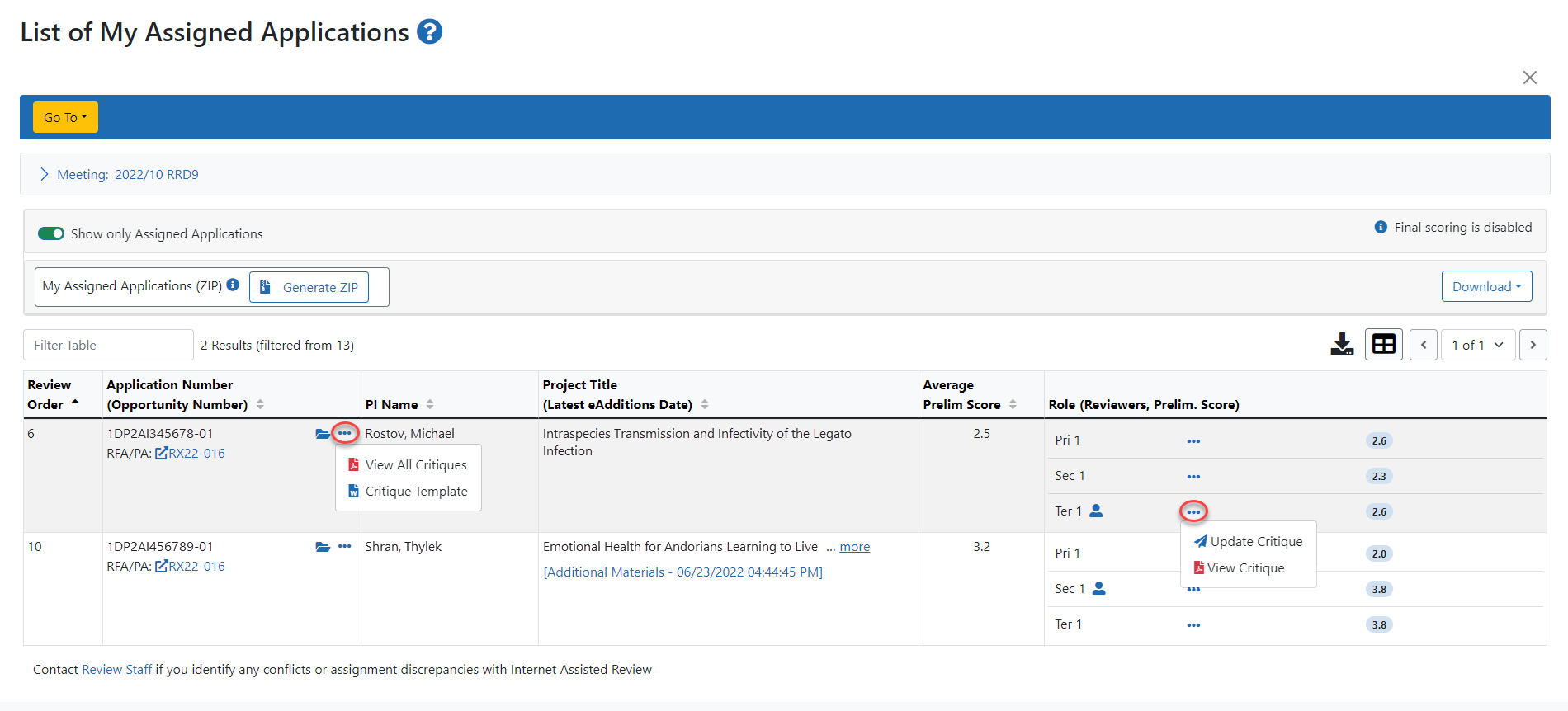
If the reviewer has submitted scores for an application, the View All Critiques link is found under the three-dot ellipses icon in the Application Number column for that application. This link can be used to access a PDF file of all reviewer’s critiques for this application. When setting up the meeting, the SRO* can choose to block a reviewer from viewing the critiques of others if that reviewer has not yet submitted his or her own scores. If the SRO chooses not to block the reviewer, this link displays whether the reviewer has submitted his or her own scores or not.
When the block option is enabled by the SRO and a reviewer has not submitted critique and preliminary scores, the following message displays under the application Role column: You must submit your critique before you can read others. The View All Critiques option will not display until the reviewer submits his or her own scores. Additional links on this screen for viewing critiques also do not function if a blocked reviewer has not submitted his or her own scores and/or critique.
The options displayed in the Role column for the Read Phase may differ from those displayed during the Submit Phase. They may also vary within the Read Phase itself depending on the settings of the meeting and whether the reviewer has submitted scores. If a reviewer has not yet submitted scores, the Submit Critique option displays under the three-dot ellipses icon in the Role column, otherwise the View Critique link is displayed for viewing only. If a critique is submitted, the View Critique link is also present for other reviews not submitted by the reviewer.
Editing a Critique During the Read Phase
NOTE: The functionality described here is limited to funding opportunities using Online Critique Templates. For information about online critiques, see About Online Critiques.
There are times when review staff may contact you to recalibrate a critique during the Read phase.
To achieve this, review staff have the option to unlock a specific critique for you. When you have completed the updates and the critique is resubmitted, the critique is once again 'locked' and cannot be edited without the review staff unlocking it again.
To access and update an unlocked critique, follow these steps:
-
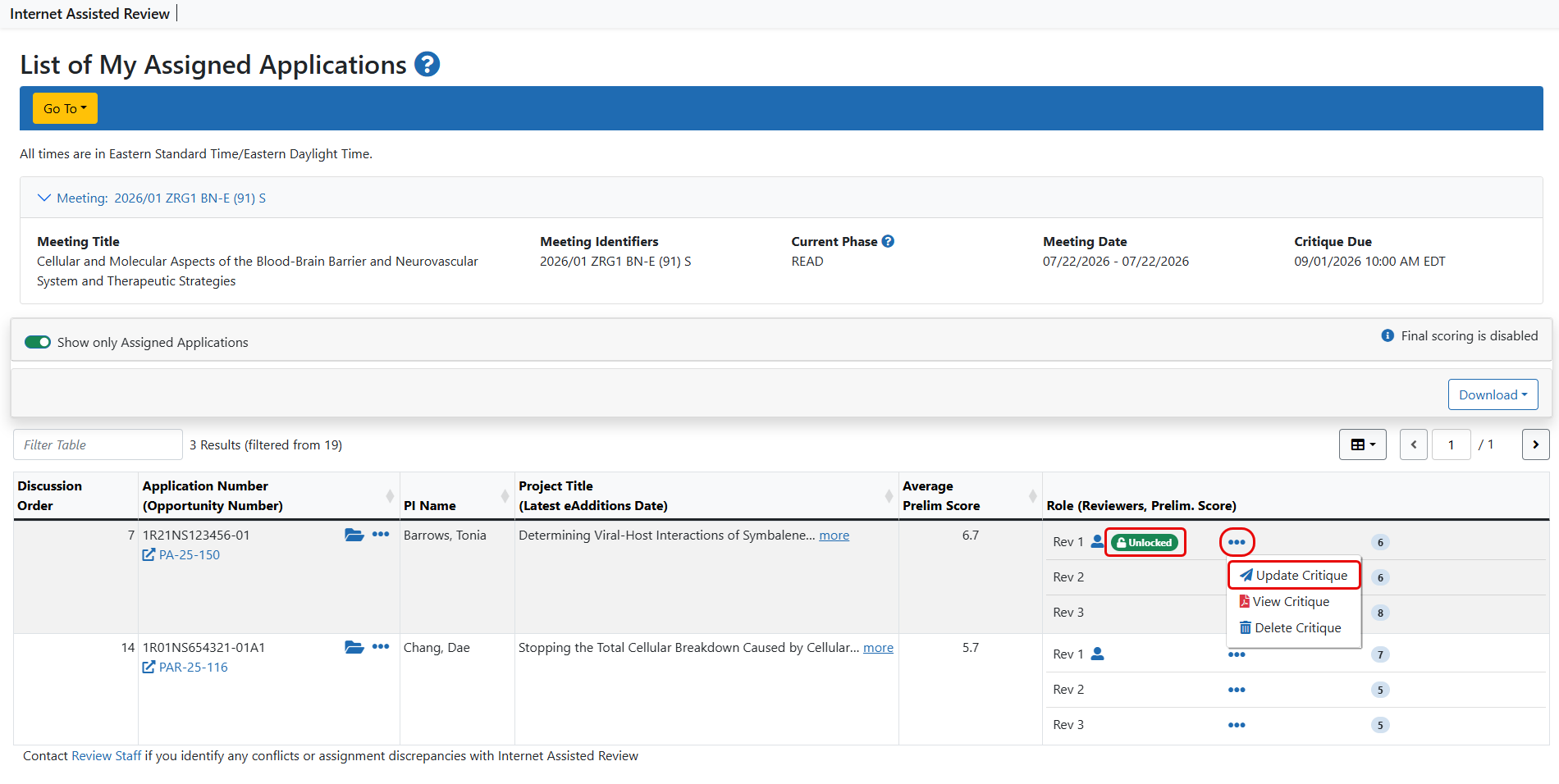
Go to the List of My Assigned Applications screen or List of Applications screen.
-
Look for the green Unlocked badge in the Role (Reviewers, Prelim. Score) column
-
Click the three-dot ellipses icon and from the options, select Update Critique.
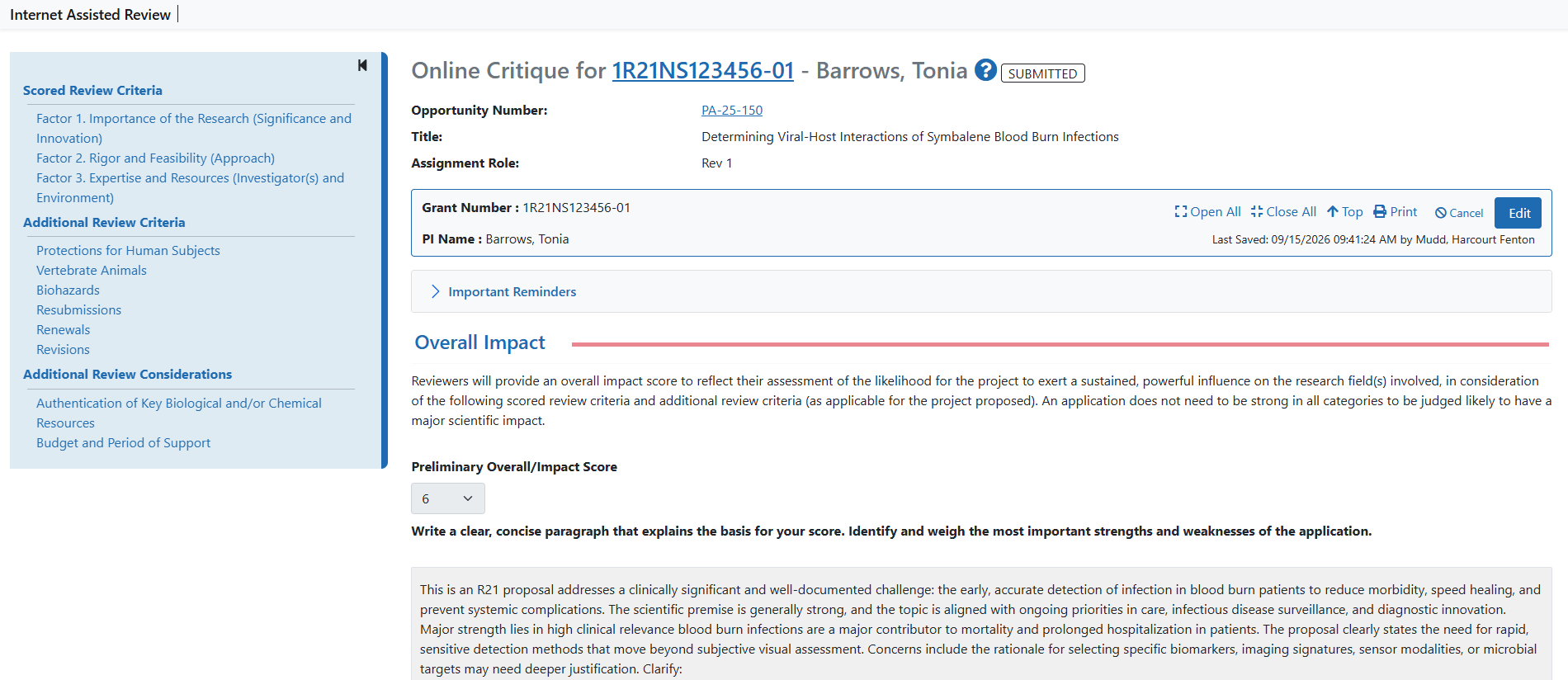
This opens the Online Critique template screen.
-
Click Edit and make the updates as needed. You have the option to Save the changes and keep working on the critique; Save & Exit to save the changes to return later to continue the work, or to Resubmit the critique.

When the critique is resubmitted, the green Unlocked badge is removed, and the critique can no longer be edited.
Important: There are two scenarios where the Preliminary Overall/Impact Score of an unlocked critique cannot be changed.
In these cases, everything on the critique can be updated with the exception of the Preliminary Overall/Impact Score. |
There are two scenarios where the Preliminary Overall/Impact Score of an unlocked critique cannot be changed.
When the meeting is in progress (i.e., the current date and time is on or after the meeting start date and time)
When Final Scoring has been enabled.
In these cases, everything on the critique can be updated with the exception of the Preliminary Overall/Impact Score.
Refer to Viewing Critiques for more information on the methods for viewing critiques within each phase of the meeting.
During the Read Phase of the meeting, the Prelim. Score column lists each application’s preliminary score per Reviewer Role. The Average score is displayed beneath these scores. reviewers may also view scores via the Preliminary Score Matrix, accessible via the Preliminary Score Matrix link. Refer to Preliminary Score Matrix for more information.
TIP: *Other Transaction Authority (OTA) — Some screens and terminology may differ to accommodate review of OTA, a type of award that is neither a grant nor a contract but a different way of funding that is used across NIH. These changes will typically not be visible to NIH or agency reviewers.
