
Training Subaward Budget
For assistance with the information required on this form, please refer to the appropriate application guide on the How to Apply page.
NOTE: The forms in these topics reflect FORMS-I, which must be used for applications with due dates on or after January 25, 2025 (see guide notice NOT-OD-24-086. Also see the annotated form set and summary of changes for Forms-I.) For due dates on or before January 24, 2025, use FORMS-H.
The Training Subaward Budget form must be added to the component as an optional form. Refer to the help topic titled Add Optional Forms .
For guidance on completing the form in ASSIST, refer to the steps below.
Adding a Training Subaward
To add a subaward:
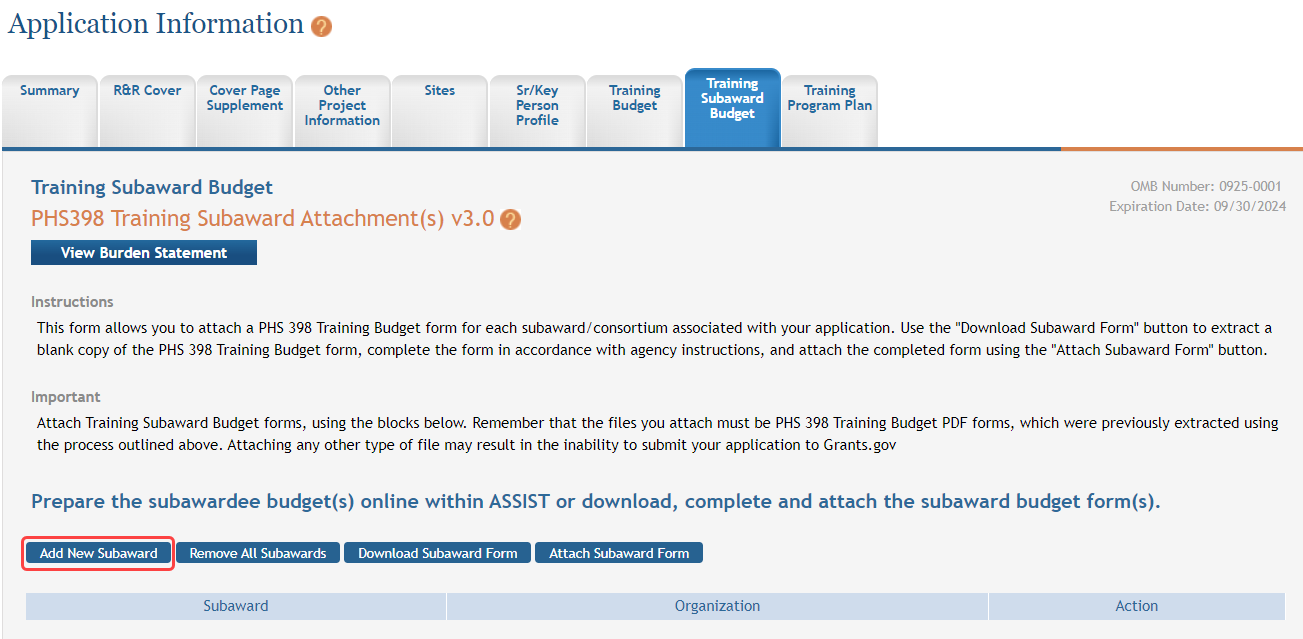
 Click the Add New Subaward button.
- Complete the budget information as appropriate. Required fields are marked with an asterisk (*).
- To save the entered information, click the Save and Keep Lock button to keep the form open for further editing -or- click the Save and Release Lock button to close the form after saving.
-
Repeat steps, clicking Add New Subaward for each additional subaward.
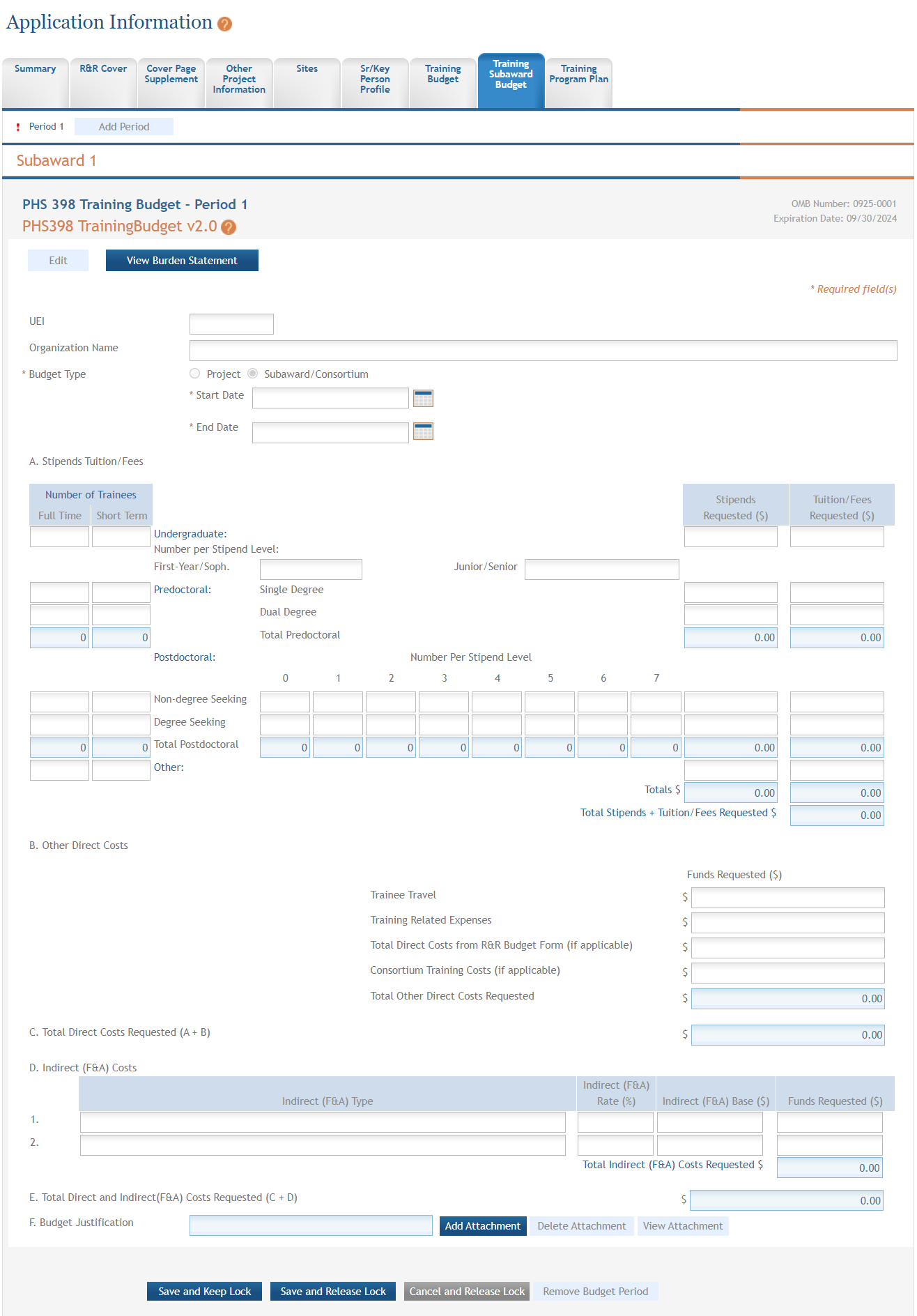
NOTE: Clicking the Cancel and Release Lock button - followed by the Continue button on the confirmation - returns the form to read-only and does not save any of the entered information onto the form.
Adding Another Budget Period to a Training Subaward
To add an additional budget period to a subaward:
-
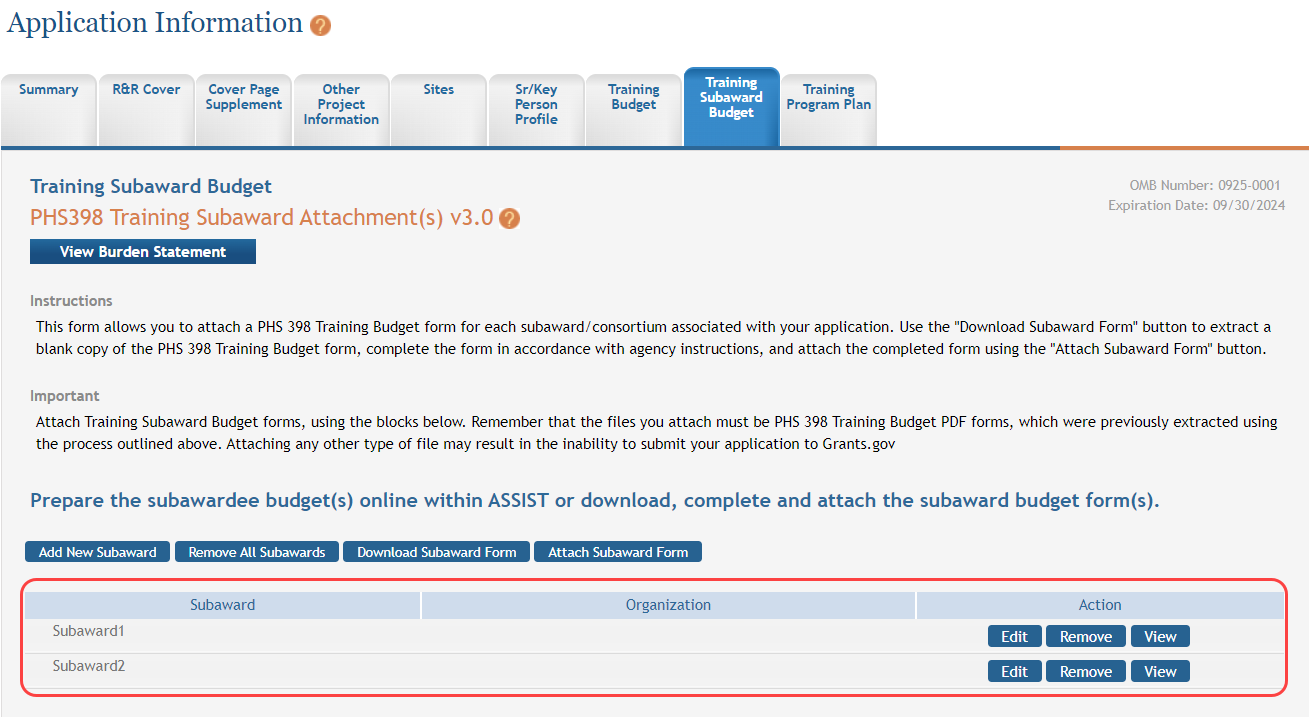
From within the subaward form, click the Add Period button.
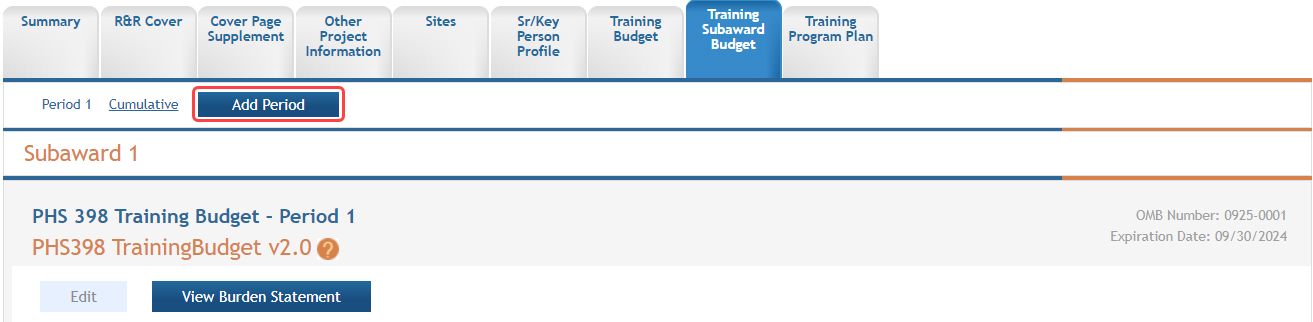
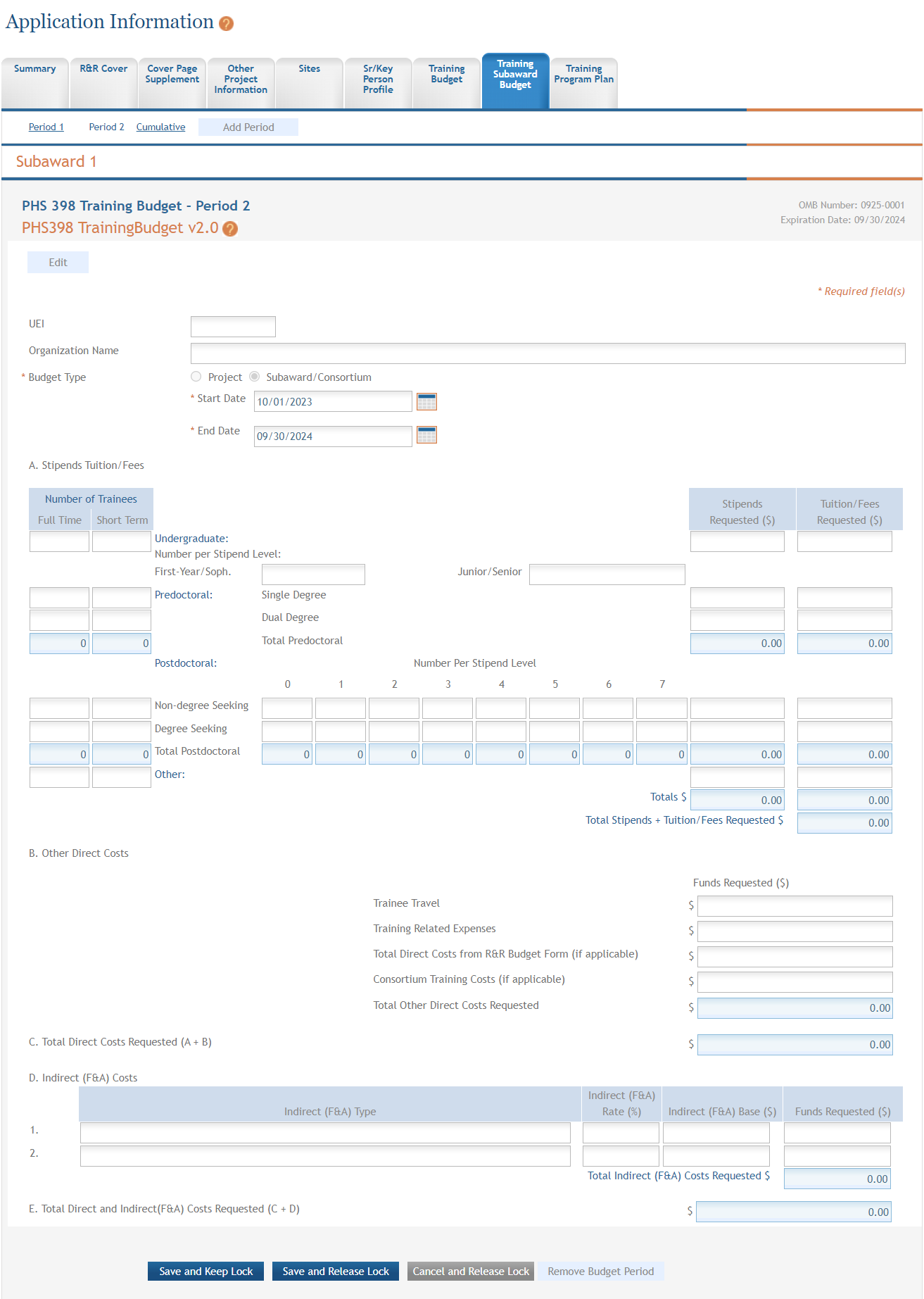
The PHS 398 Training Budget - Period X displays (where X is the specific budget period being added).
- Enter the budget information for the specific period.
- To save the entered information, click the Save and Keep Lock button to keep the form open for further editing -or- click the Save and Release Lock button to close the form after saving.
NOTE: Clicking the Cancel and Release Lock button - followed by the Continue button on the confirmation - returns the form to read-only and does not save any of the entered information onto the form.
Editing and Viewing an Entered Training Budget for a Subaward
To view and/or edit the subaward training budget period:
-
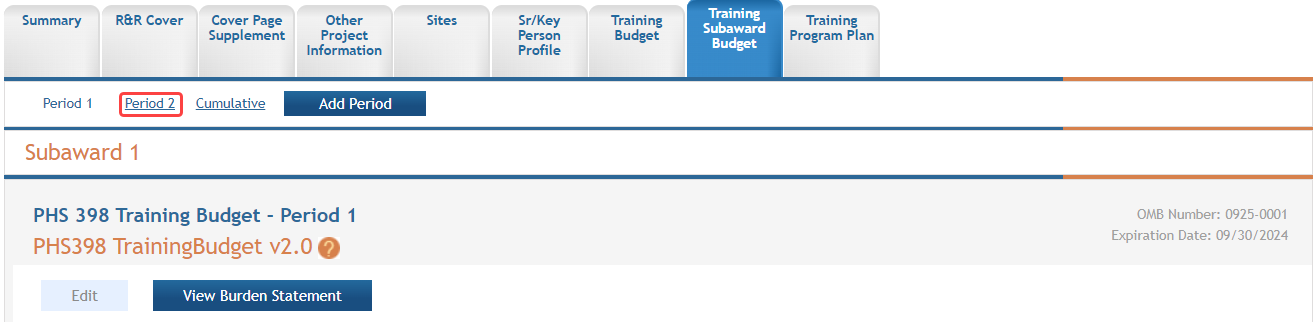
From within the subaward form, click the link for the period to view or edit (e.g., Period 2 link).
- View the information.
- Click the Edit button to edit the information.
- Update the budget information as necessary.
- To save the entered information, click the Save and Keep Lock button to keep the form open for further editing -or- click the Save and Release Lock button to close the form after saving.
NOTE: Clicking the Cancel and Release Lock button - followed by the Continue button on the confirmation - returns the form to read-only and does not save any of the entered information onto the form.
Viewing Cumulative Training Budget for a Subaward
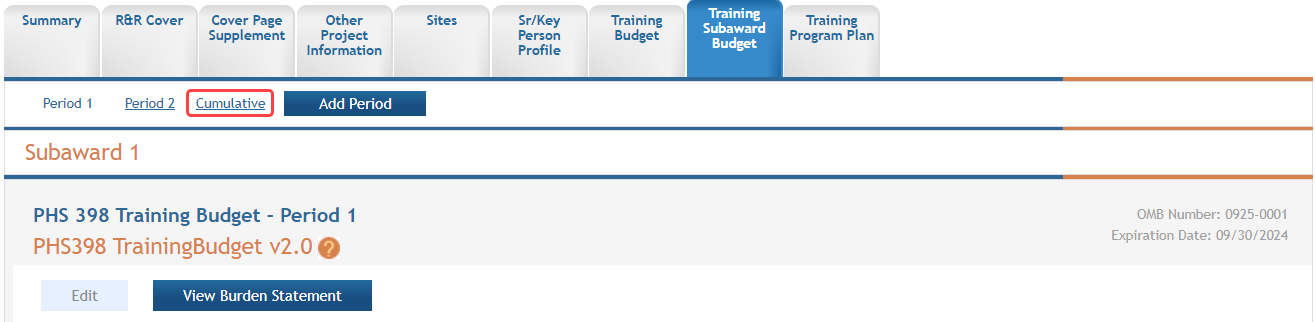
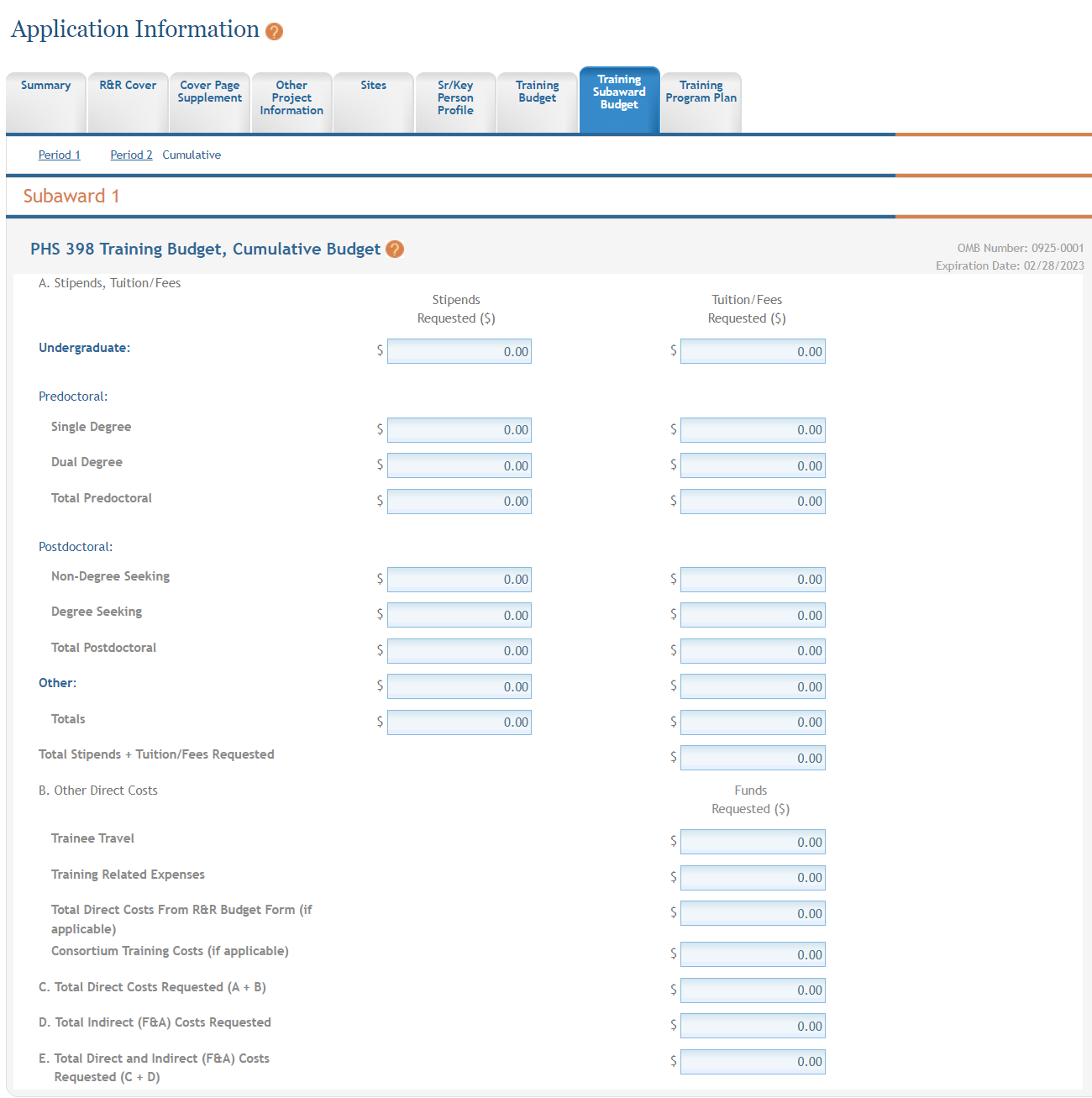
The PHS 398 Training Budget - Cumulative Budget displays as read-only.
Removing Training Budget Subawards
Training budget subawards can be removed individually or all at once. The steps below provide detail for each method.
Removing an Individual Training Budget Subaward
To remove an individual subaward:
-
Click the Remove button from the Action column for the particular subaward being removed.
-
Click the Continue button to complete the removal.

Removing All Training Budget Subawards
To remove all subawards at one time:
- Click the Remove all Subawards button from the Training Subaward Budget tab main page.
-
Click the Continue button to move forward and delete the subawards. (Clicking Go Back cancels the action.)

