
User Reports
AMM includes the following user report capabilities:
- All Users Report — Information on all user accounts in your organization.
To open the reporting functions, click the AMM User Reports tab.
The All Users Report screen opens. There are two versions of this screen, as shown below. The version you see depends on the organization you belong to.
TIP: To select multiple organizations, roles, or business areas, hold your ctrl key as you click.
Navigating Report Outputs
These tips for browsing, filtering and exporting the report output apply to all report types. Report output displays include several control options:

Report output controls
- To filter the report, start typing in the Filter field. Only rows that contain your entered text display, and all instances of your filter text are highlighted in yellow:
- To adjust the number of records displayed, select a number in the Show per page dropdown.
- To navigate the report pages, click a Page Number or use the left and right arrow buttons.
- To re-sort the report columns in ascending or descending order, click the up/down arrows in the column headers.
- To export the report output as an Excel spreadsheet or PDF, click the appropriate Export button:
- Excel — When you click this button, an open-or-save dialog opens.
- Click Open to open the report data in Excel; a new Excel window opens. Click the Enable Editing button in the yellow bar at the top of the worksheet to work with the data.
- PDF — Click this button to save the report as a PDF file. A save dialog opens; choose a location and save the file.
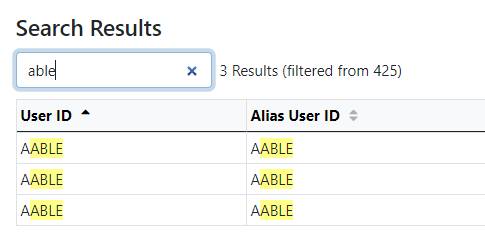
Filter results
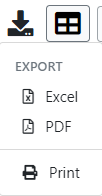
Export button

Open-or-save dialog
