
Manage State Department User Accounts
- Perform one of the following steps to edit an account:
- Click the appropriate Manage button in the Action column on the Search Accounts or Annual Recertification screens.
- Click the Manage button on the Account Details screen after an account have been created or saved (edited).
Clicking the Manage button opens the Manage Account screen:
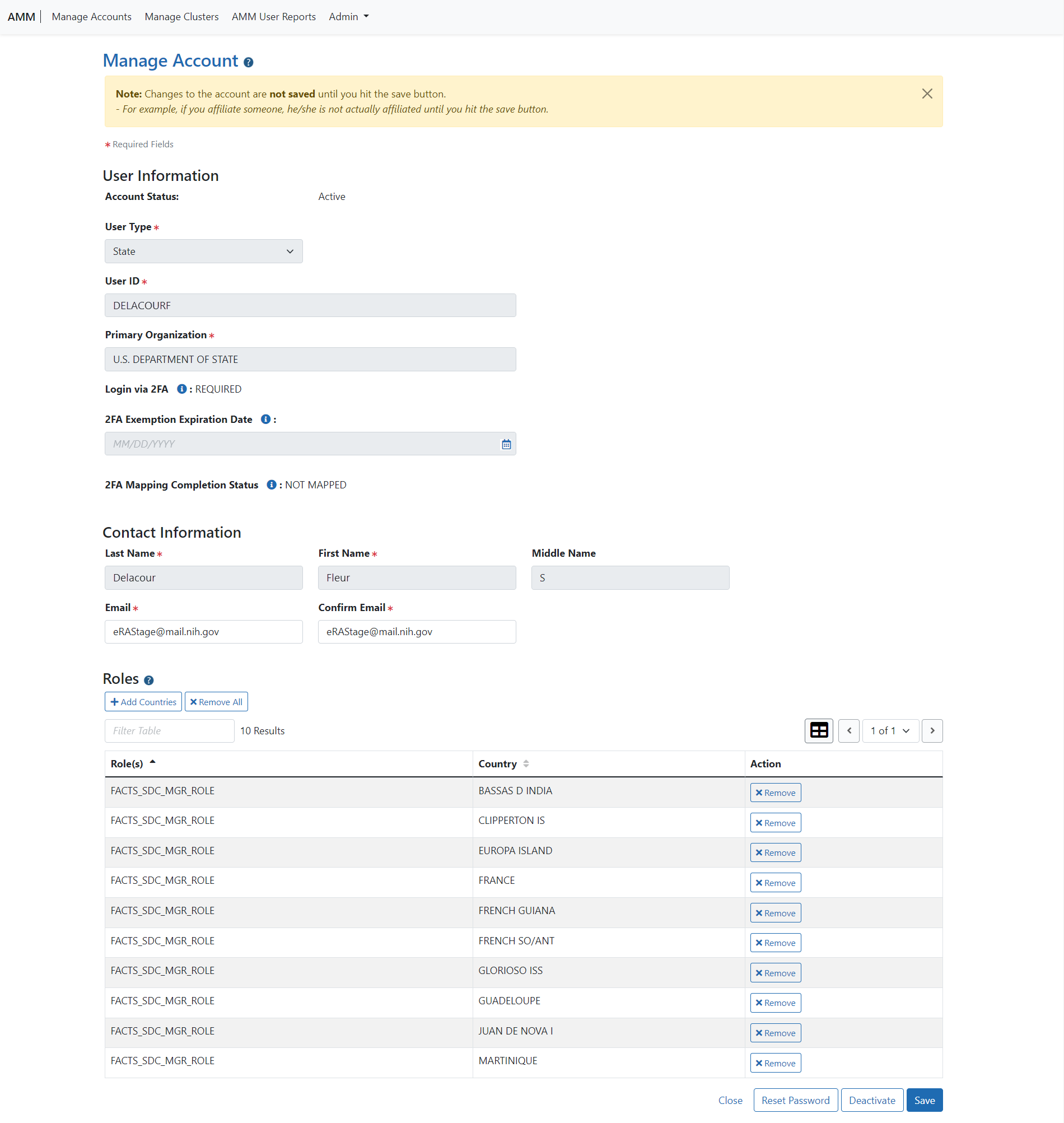
Manage Account screen for Department of State users
NOTE: Fields that are grayed-out are not editable.
Perform one or more of the following steps:
-
Edit the Email addresses, if necessary.
-
Click the + Add Countries button to add countries.
- For more information, please refer to the Add/Delete Countries topic.
-
Click the Remove button to remove a country from the list in the Roles section.
-
Click the Reset Password button to reset the user's password.
- Please refer the Reset Password topic for more information.
-
Perform one of the following options:
- Click the Save button to save the changes.
- Click the Cancel button to return to the Account Details screen.
Clicking the Save button opens the Account Details screen with the message: Account was updated successfully!
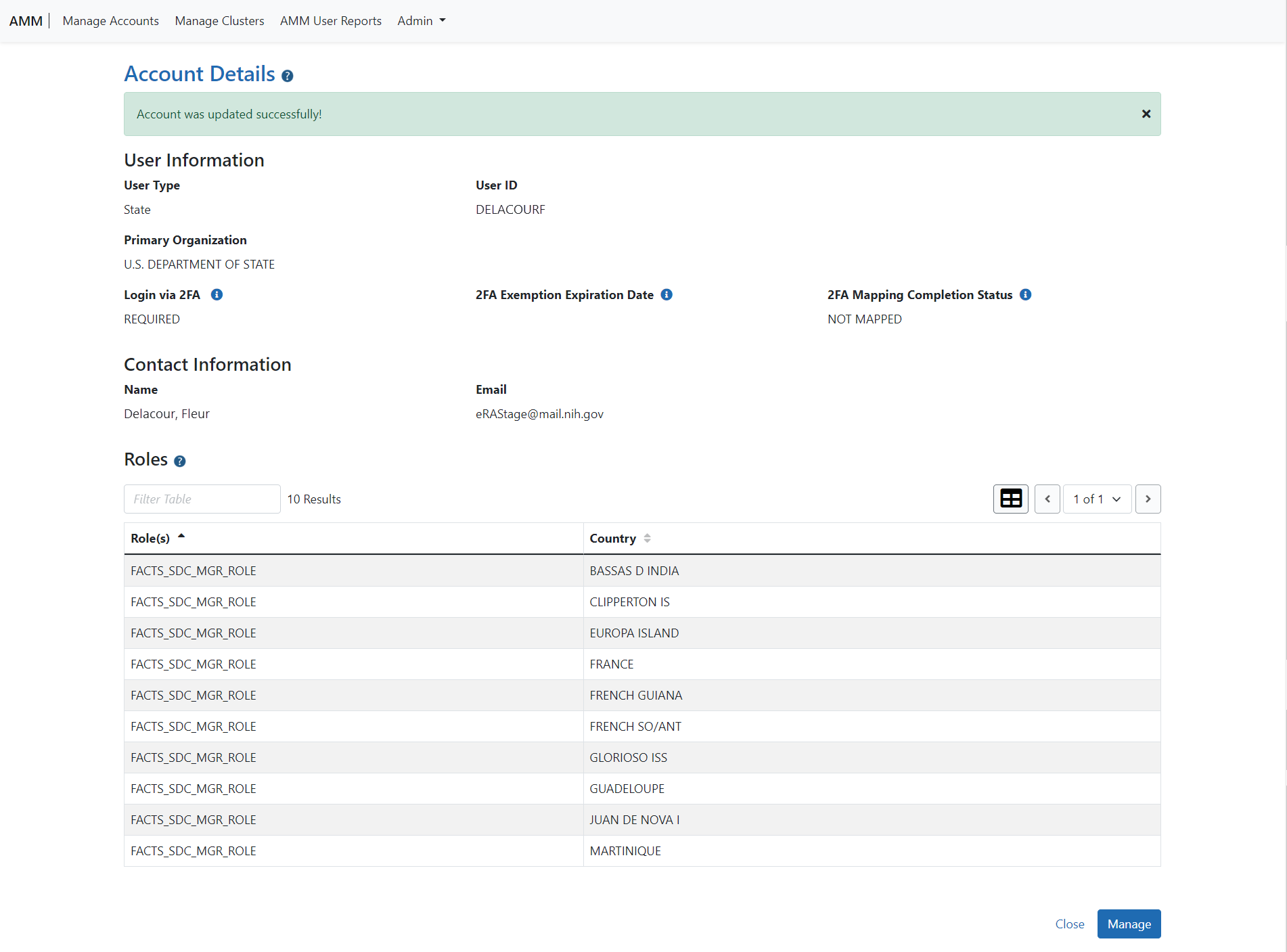
Account Details screen with success confirmation message
To edit the account's information, click the Manage button.
Two-Factor Authentication
-
Login via 2FA — Shows the status of Login.gov for this account: Required, Optional, or Exemption. This field is set automatically at the organization level.
-
2FA Exemption Expiration Date — When Login via 2FA is set to Exemption, this field displays the exemption end date. The user can login using eRA credentials until this date.
NOTE: 2FA exemptions are only granted on a limited basis by the eRA Service Desk and only the eRA Service Desk can modify exemption expiration date.
-
2FA Mapping Completion Status — Indicates whether the user's account is Mapped or Not Mapped for 2FA.
