
Affiliate Account
- To affiliate an existing account with an organization, search for the user account in AMM and click the Manage button for the account.
- Click the +Affiliate button under Roles on the Manage Account screen:
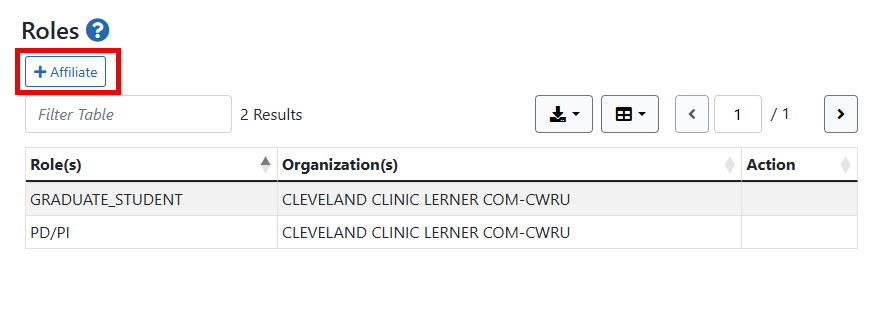
Click the +Affiliate button to open the Add Roles screen:
NOTE: The list of roles is dependent on the logged-in user's role.
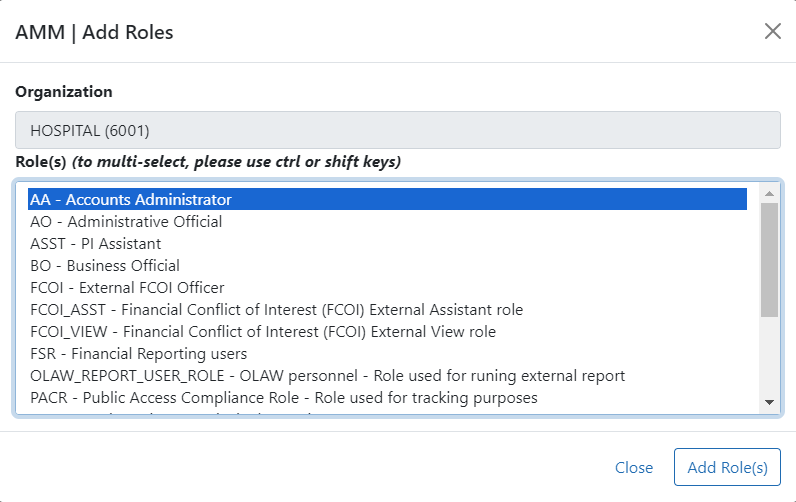
Add Roles popup
- Highlight the appropriate role(s).
- Click the Add Role(s) button.
When the Add Role(s) button is clicked, the role is added, the account is placed in Active status, and the Unaffiliate button appears in the Roles section:
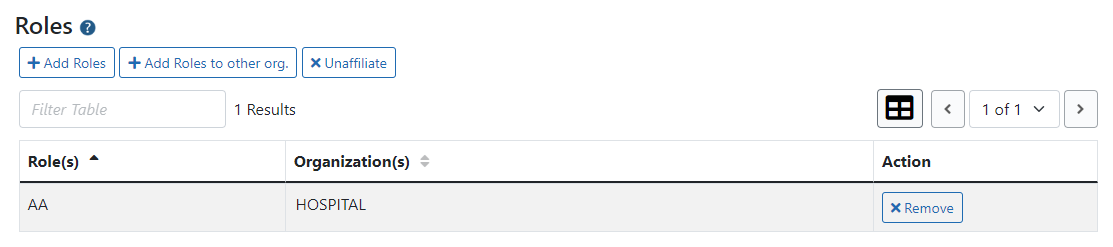
Roles section on the Manage Account screen
