
Change Password
- In the Commons Admin screen, select Change Password from the Accounts tab dropdown:

Click the Admin screen Accounts tab and select Change Password
The Change Password tab displays the Change Password screen in a separate browser window.
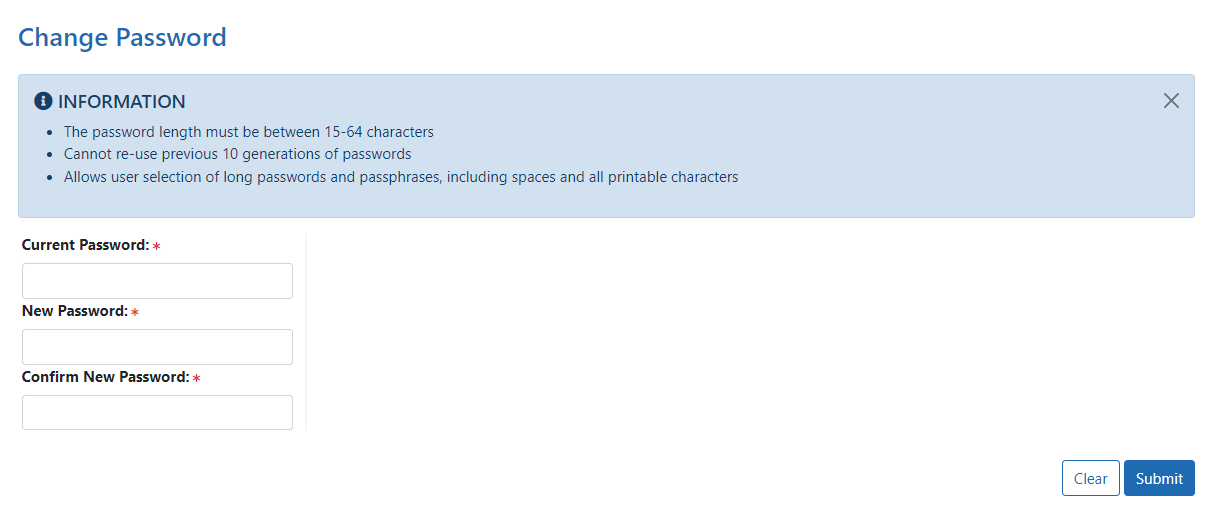
Change Password screen
- Enter your Current Password.
- Enter your New Password.
- Type your new password a second time in the Confirm New Password field.
- Perform one of the following options:
- Click the Save button to save the changes.
- Click the Clear button to clear the fields.
Use your new password the next time that you login to Commons.
The password guidelines are:
Password length must be between 15-64 characters
The first and last characters cannot be numbers
Cannot contain your username
Cannot reuse your previous 10 generations of passwords
